

In this page
Assets integration features
Assets integration vs. the Assets built-in Excel exports
Tutorial video
Assets Excel export samples
Jira issues with Assets objects
Jira issues with Assets objects and attributes
Jira issues per Assets objects pivot chart
Configuration
Configuring the Assets custom fields
Configuring the export format for the Assets custom fields
Configuring the Assets Excel report templates
Learn more about Assets
What is Assets?
(supported since Better Excel Exporter 2.5.0)
Assets is Atlassian's platform app for asset management, that allows implementing CMDB, CRM, HR, ITSM or ITIL functionality on the Jira platform.
Assets integration features
- You can export all Assets-managed custom field types like Assets object, Assets object (single) (legacy), Assets object (multi) (legacy), Assets referenced object (single), Assets referenced object (multi) and Assets readonly object to Excel.
- You can configure the export format to include object names (e.g. "My awesome server"), object keys (e.g. "My awesome server [SRVR-123]"), object attributes (e.g. "My awesome server [SRVR-123] (Manufacturer=Cray Research, Vector Processors=4, Type=Supercomputer)") and any combination of these.
- Better Excel Exporter also offers a ready-made report template to calculate issue count, project distribution and status distribution by Assets objects. Although this is useful as is, this can also be used as a starting point to create custom Excel reports from Assets data.
(Need more features? Tell us in a support ticket!)
Assets integration vs. the Assets built-in Excel exports
You may want to ask: if Assets has a built-in Excel export feature, why would you use another app for the same?
While the Assets built-in Excel exports may be sufficient for basic use cases, the Better Excel Exporter integration is more powerful in, at least, these:
-
It supports Excel automation.
You can export, email and attach Excel files using Automation for Jira (visual automation rules), ScriptRunner (Groovy scripts), or the REST API (use your favorite language!). -
It is extremely customizable.
Instead of accepting the pre-defined export types in Assets, you can define your own types via Excel templates. -
It supports all the powerful Excel features.
You can use Excel formulas and functions, custom calculations in Groovy (sorting, complex math, data integration, etc.), charts, pivot tables, pivot charts, Visual Basic macros, among others. -
It is integrated with all the popular Jira apps.
You can freely combine Assets data and other apps' data in the same Excel file. -
It comes with powerful templates optimized for Assets.
You can use those "as is", or customize them to your needs. - It is well-documented with the customization guide, the Expression Reference Manual, the recipes, and such.
If at least one of these is important for you, give the app a try.
Tutorial video
Watch this short introductory video to see how fast you can export your Assets data to Excel!


Assets Excel export samples
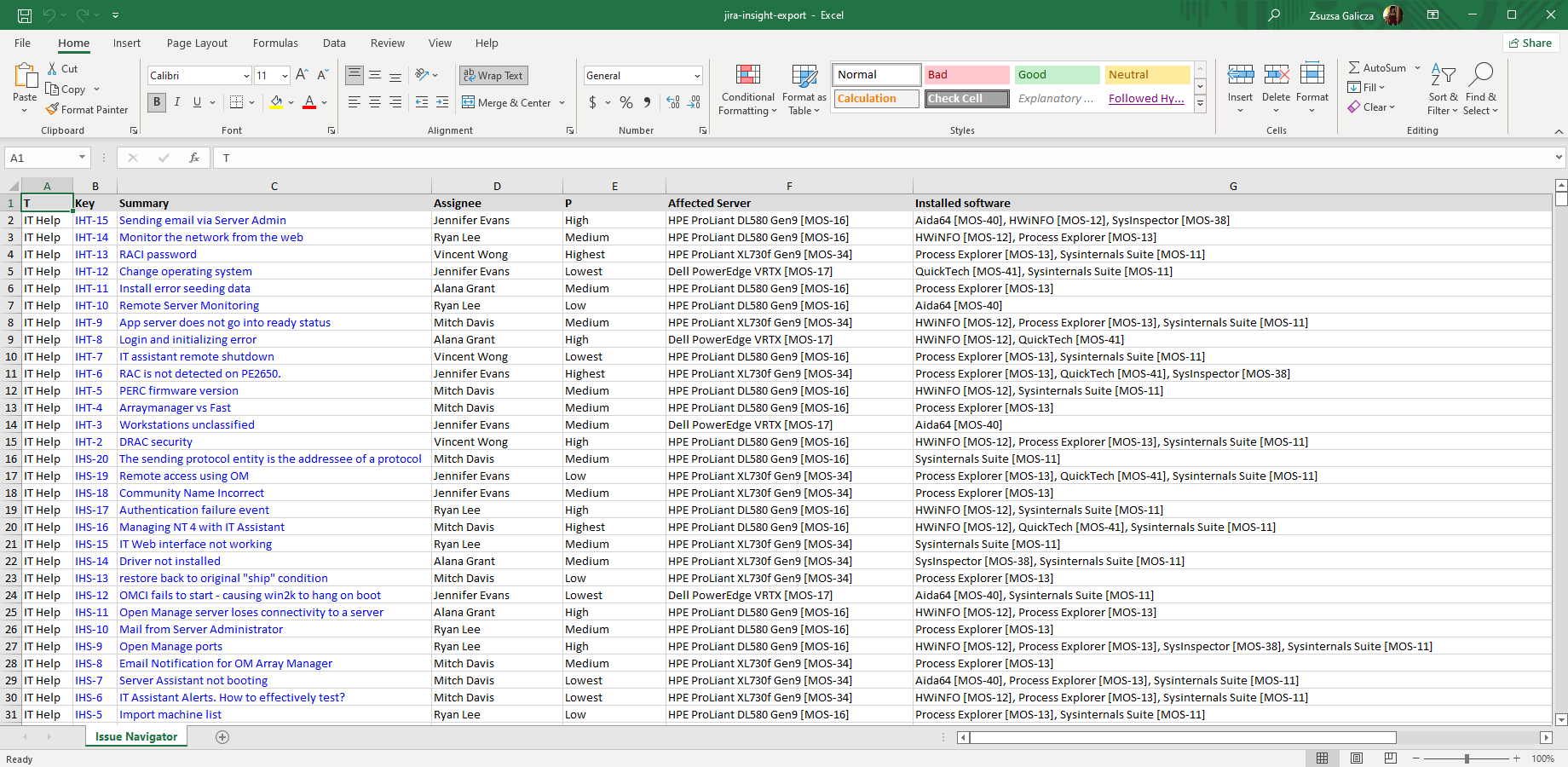
Jira issues with Assets objects
This straightforward Excel export (created using the default issue-navigator.xlsx template) contains two Assets custom fields: one of them is a single-select, while the other one is a multi-select type. Both use the "object name [object key]" format which is customizable.

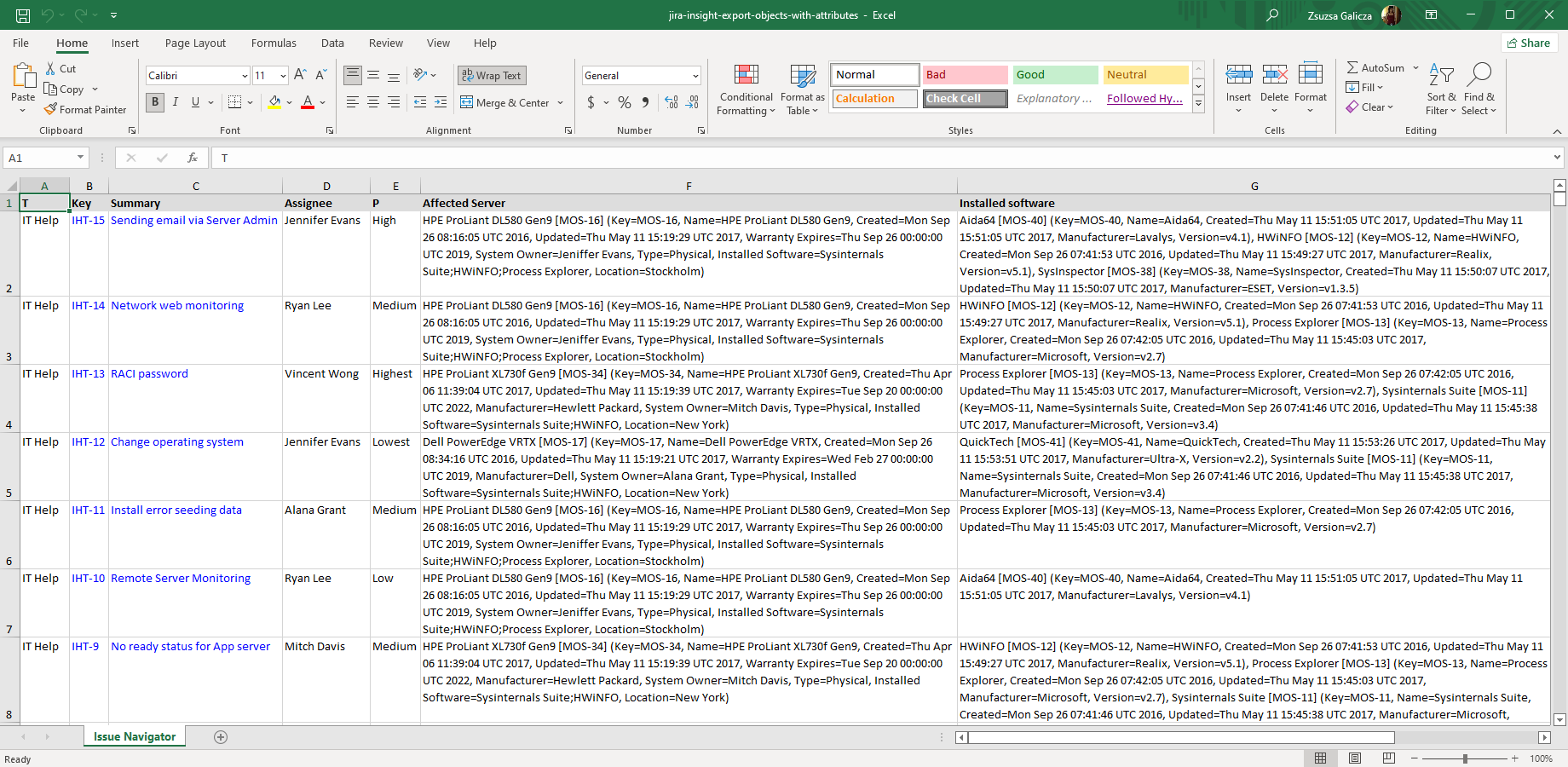
Jira issues with Assets objects and attributes
This Excel example is configured to export the complete attribute set for each Assets object. The attributes are exported to an Excel spreadsheet as comma-separated name-value pairs in brackets (the format is completely customizable).
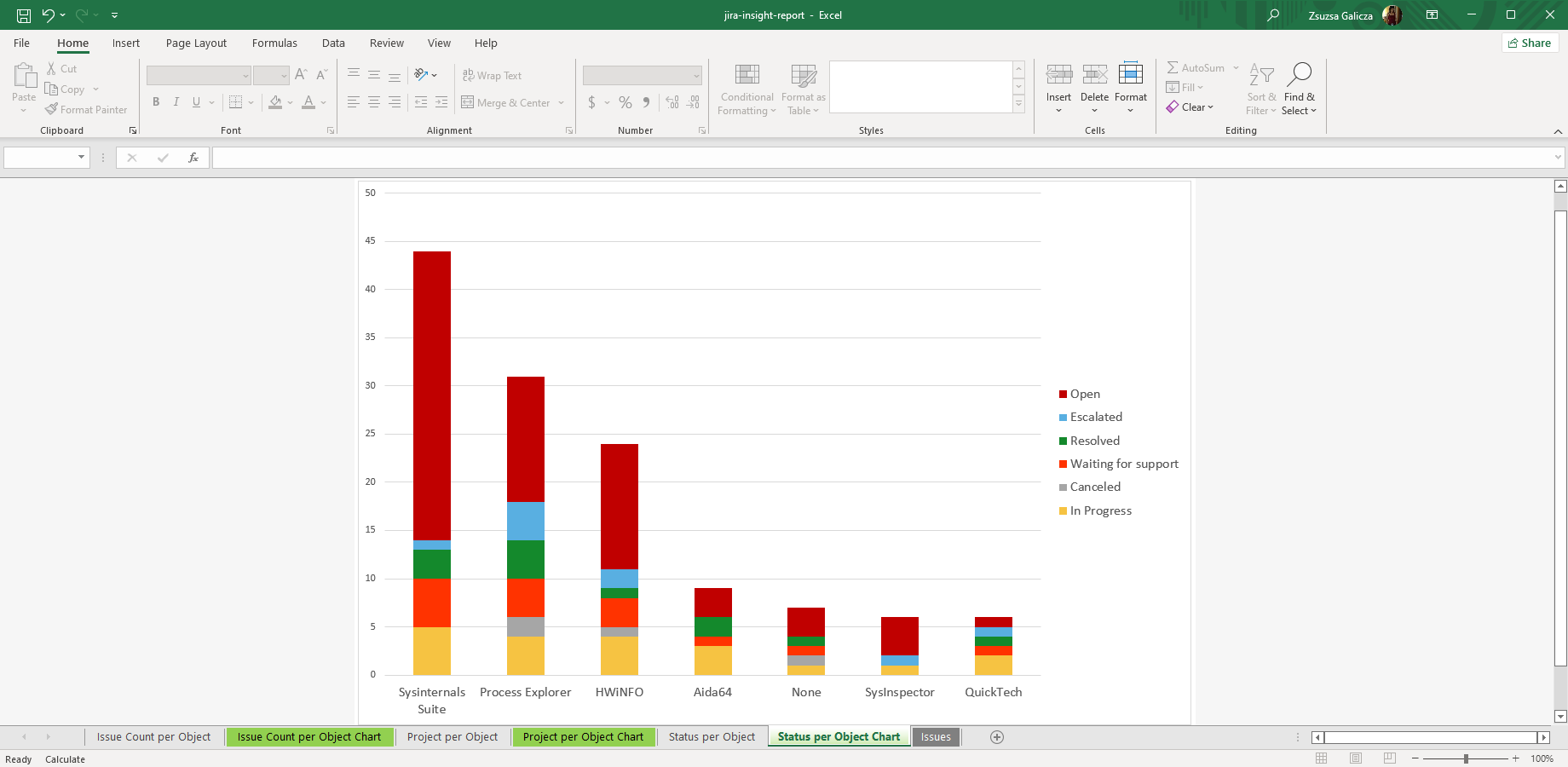
Jira issues per Assets objects pivot chart
You can also create custom Excel reports from Assets data, just like from built-in custom field values. The insight-report.xlsx template calculates issue count per object, project distribution per object and status distribution per object. Looking for more? Create your own Assets Excel report from Jira using this template as a starting point.
Configuration
Configuring the Assets custom fields
There is nothing to do. Better Excel Exporter will automatically recognize the Assets-managed fields and export them accordingly.
Configuring the export format for the Assets custom fields
The default behavior is that object names and object keys will be exported (e.g. "My awesome server [SRVR-123]"). You can include object name, object key and attributes by setting these configuration variables in the top part of the field-helper-tool.groovy script:
// field-helper-tool.groovy

/* Insight configuration. */
def insightObjectsWithNames = true
def insightObjectsWithKeys = true
def insightObjectsWithAttributes = false
If you want full control over the export format, please see this easy-to-read method in field-helper-tool.groovy:
private def insightObjectToString(def object)
Configuring the Assets Excel report templates
The template insight-report.xlsx contains a placeholder for the Assets-managed custom field, which should be correctly configured before generating reports.
Steps:
- Login to Jira as administrator.
- Go to Administration → Add-ons → Excel Templates.
- Download the template insight-report.xlsx.
- Open the file in Microsoft Excel for editing.
-
Go to the last worksheet, check the first cell in the second row that contain an expression like:
<jt:forEach items="${issues}" var="issue"><jt:forEach items="${insight.getObjects(issue, 'customfield_10123')}" var="object">${issue.key}Replace the placeholder custom field ID customfield_10123 with the actual ID of that custom field (see this section for help). For instance, if the ID is 10456 in your Jira instance, then change the expression to:<jt:forEach items="${issues}" var="issue"><jt:forEach items="${insight.getObjects(issue, 'customfield_10456')}" var="object">${issue.key} - Save the Excel file (do not change its name!) and upload that to Jira.
-
For testing, go to Issue Navigator.
Export an Excel file with the Insight (Excel) view, and check whether the cell values are correctly exported in the last worksheet.
If those are, you are done.
If not, check the custom field IDs again in the template.
(Please note that this is easy, and you have to configure this only once.)