

In this page
Direct PDF exports
Location of the PDF export links
Work with the PDF export file
Configure PDF exports
Manage PDF views (export types)
Add a new PDF view
Edit an existing PDF view
Delete an existing PDF view
Reorder PDF views
Restore the default PDF views
Manage PDF resources (PDF templates and Groovy scripts)
Add a new PDF resource
Edit an existing PDF resource
Delete an existing PDF resource
Restore the default PDF resources
Security modes
Switch between security modes
Next step
Export Jira issues to PDF
The Better PDF Exporter for Jira Data Center app enables users to create professional PDF files from issues, filters, dashboards, and other Jira data. The whole process is intuitive and takes just a few clicks.
You can start PDF exports in multiple ways, explained in the next sections.
Direct PDF exports
Direct exports are seamlessly integrated into the Work Item Details, Filter Results, Dashboard, Board, and other Jira screens. This is useful if you want to review the object before exporting it.
To start a direct PDF export:
- Go to the object to export (issue, filter, dashboard, board, etc.).
- Click the export link on the screen. (See the next section for the exact location of the link.)
- Select the PDF view that produces your desired output.
- Wait for the file to be downloaded to your computer.
Location of the PDF export links
The following table summarizes the locations of the export links on various screens.
| Data to export | Export link location |
|---|---|
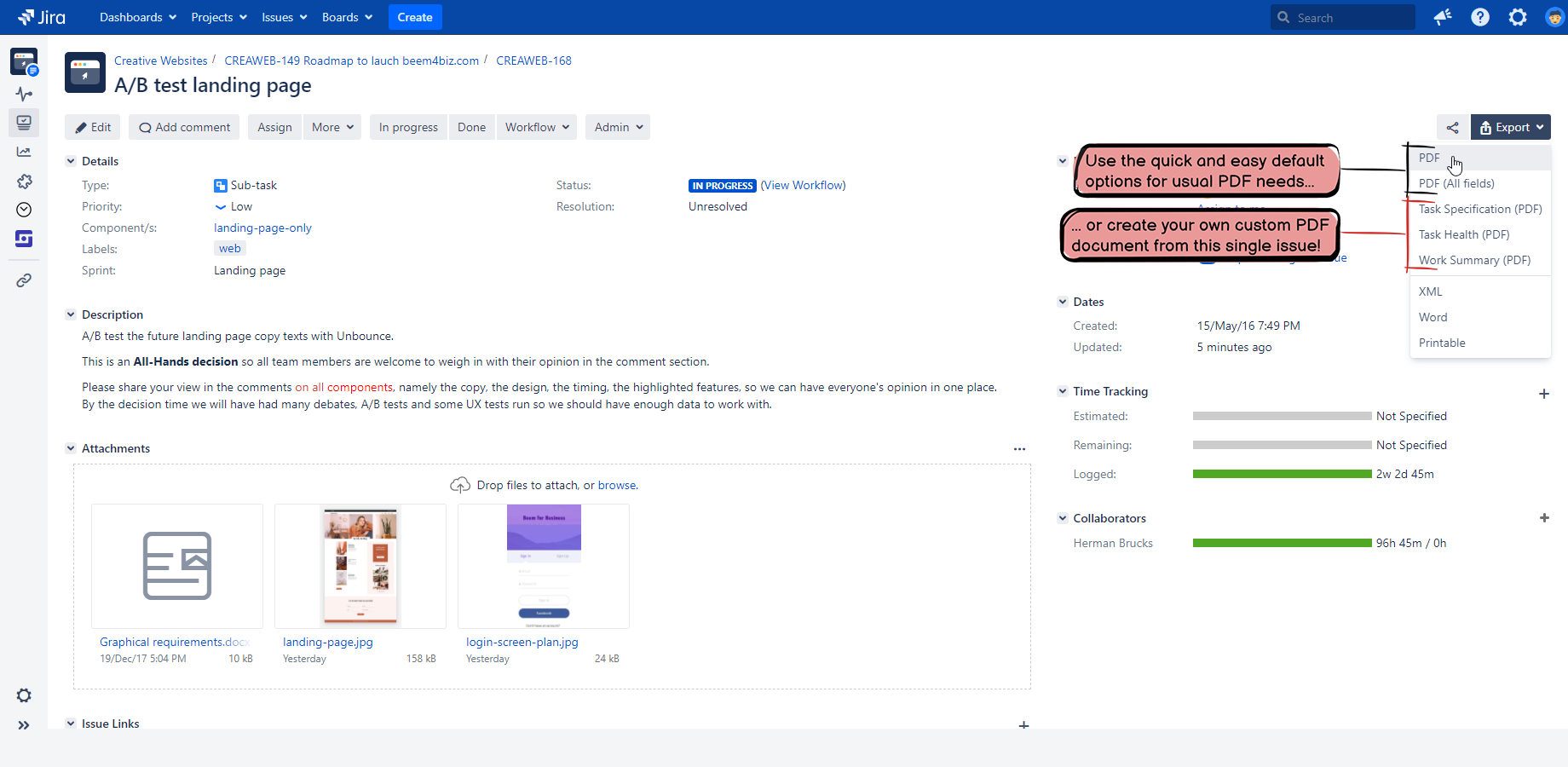
| A single issue |
"Export" menu on the top of the issue Details screen.
|
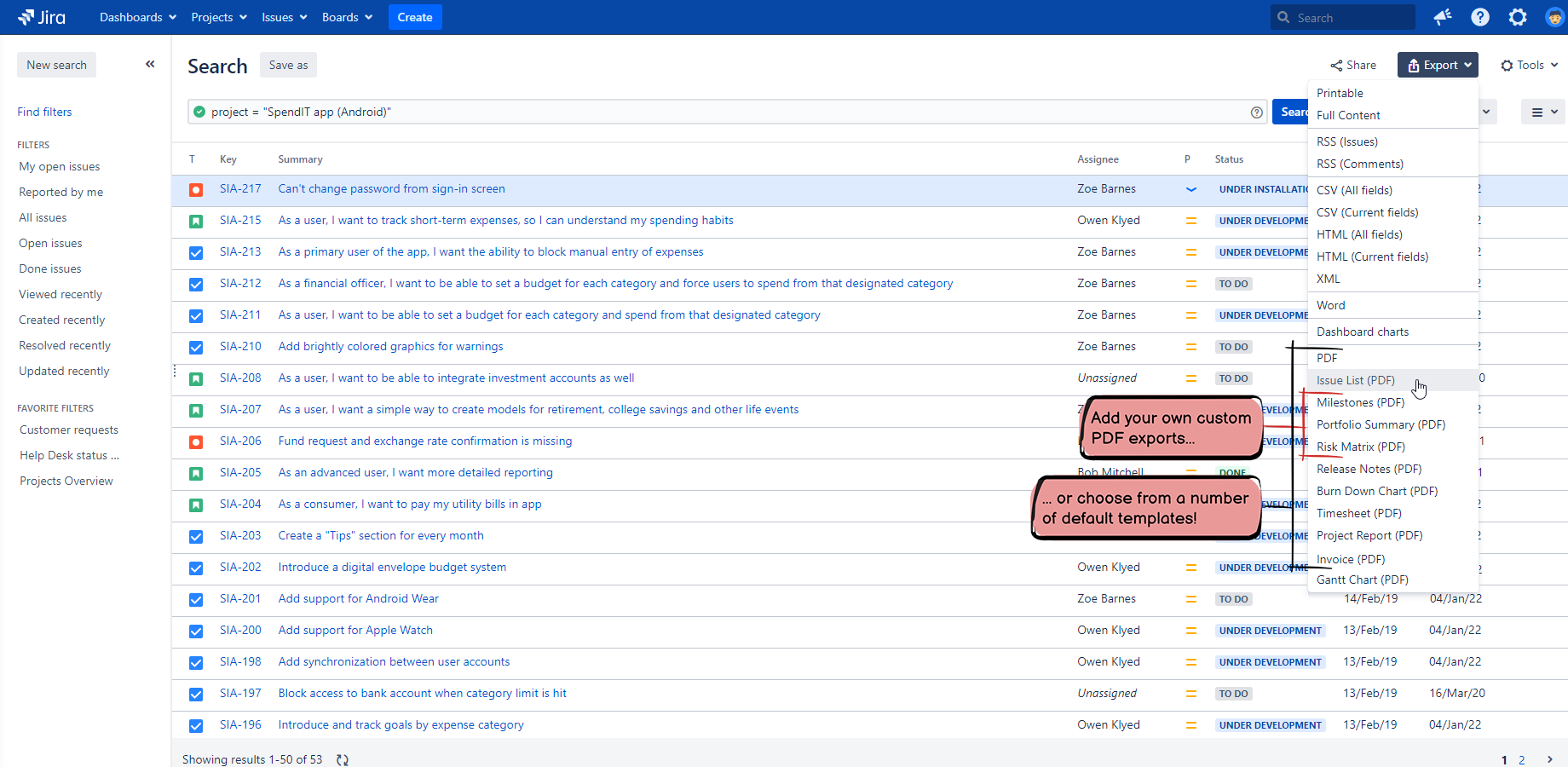
| Issues from a filter |
"Export" menu on the top of the Filter screen.
|
| Issues from a JQL search |
"Export" menu on the top of the Search screen.
|
| Issues from a board | "Download" button on the top of the board column. |
| Issues from a backlog | "Export" menu at the backlog section on the Backlog screen. |
| Issues from a sprint | "Export" menu at the sprint on the Backlog screen. |
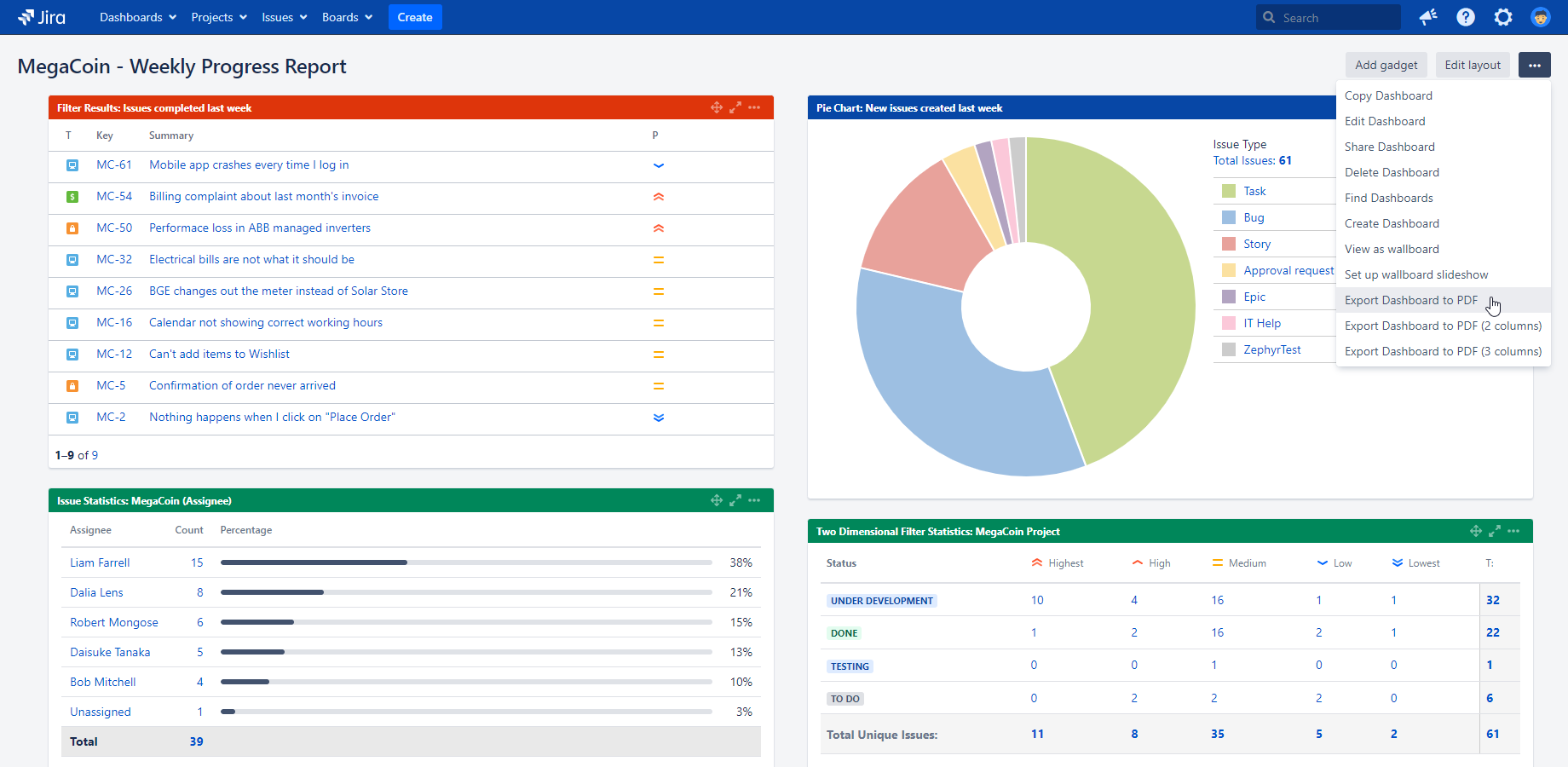
| A dashboard |
"..." menu on the top of the Dashboard screen.
|
| A structure (from the Structure app) | "Export" menu on the top of the Structure screen. |
| A timesheet (from the Tempo timesheet app) | "Export" menu on the top of the Timesheet screen. |
Work with the PDF export file
After the app generated the PDF document, it will automatically download the file to your computer.
You can open it in any PDF viewer. We recommend using Adobe Reader for the best experience.
Configure PDF exports
There are two components to configure PDF exports:
- PDF views (also called "export types")
- PDF resources
The app supports multiple PDF views. Different PDF views generate PDF exports using different templates and different Groovy scripts. That way you can set up separate views to export issue lists, timesheets, release notes, and other PDF documents.
Manage PDF views (export types)
You can manage the PDF views on the PDF Views screen, where you can add, edit, delete, and reorder them.
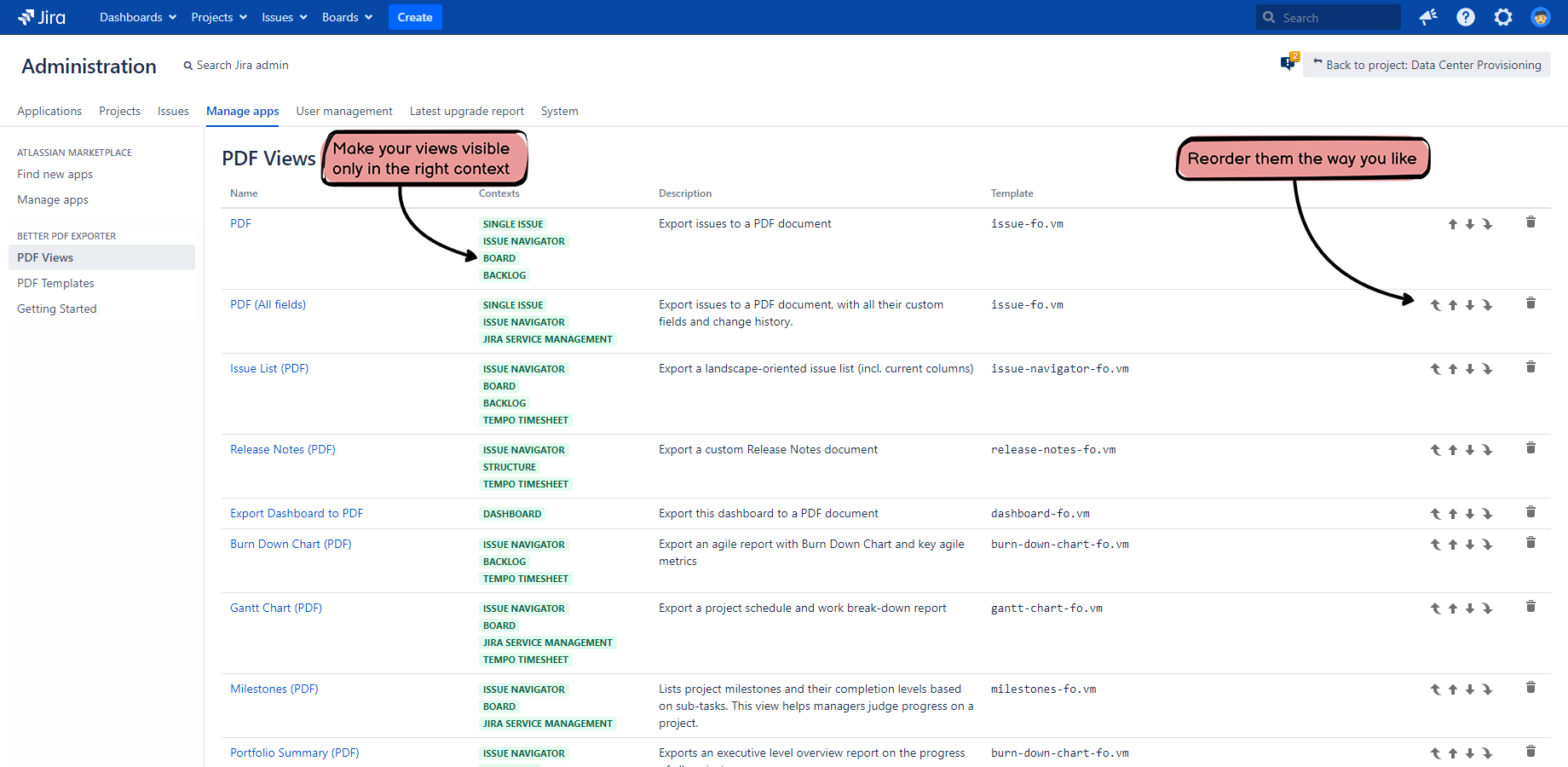
To access this screen, go to Jira administration (on the top-left) → Manage apps → PDF Views. It requires Jira administrator permissions for obvious reasons.
Add a new PDF view
You can add a new PDF view by clicking the button beside the list and filling the form with the view's properties.
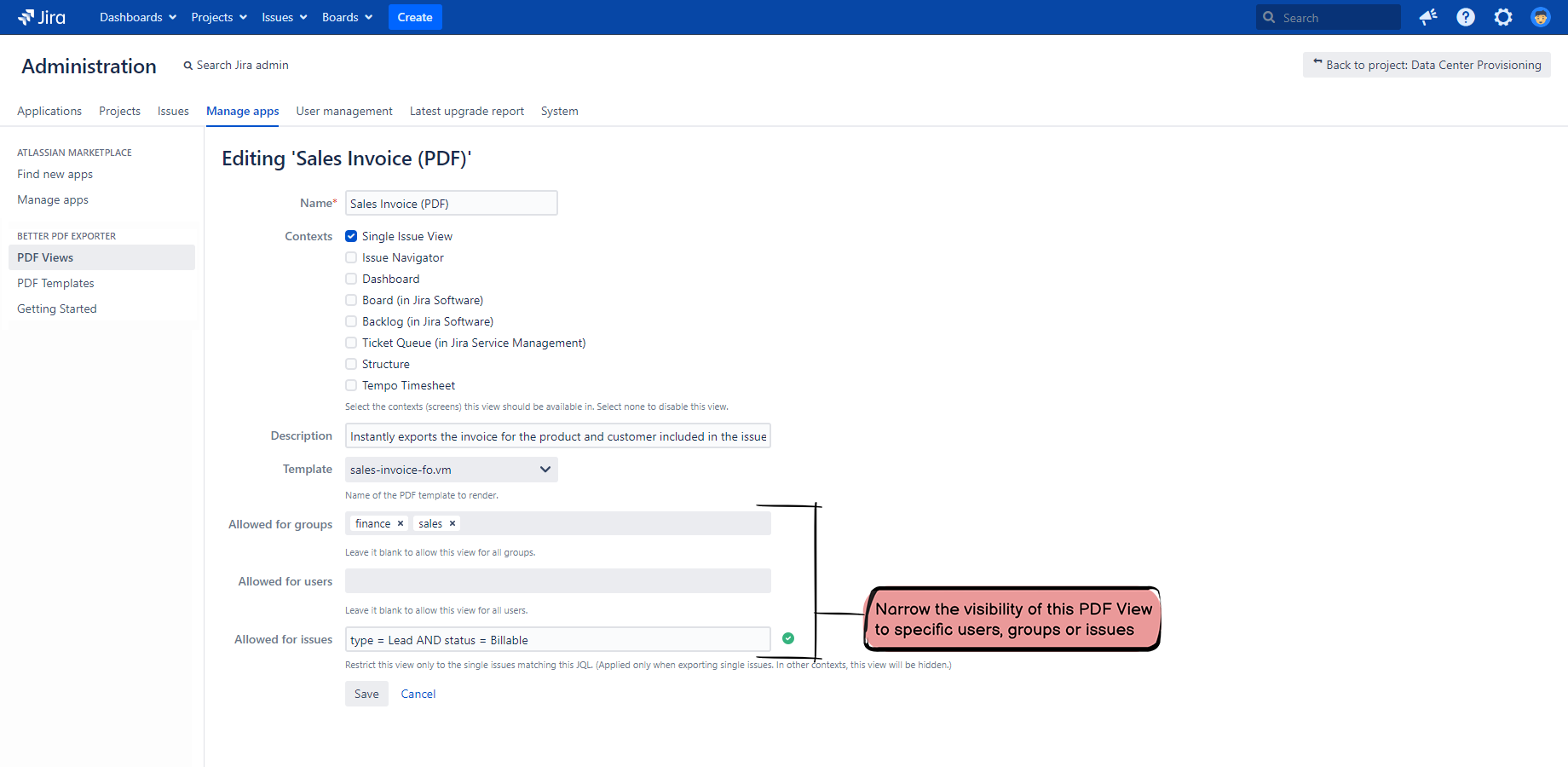
Each PDF view has the following properties:
- Name: it appears in the Export drop-down menu.
- Description: it explains the purpose of the view.
-
Enabled contexts: the screens where this view will be offered as an export option.
- Single Issue View
- Issue Navigator
- Dashboard
- Board (in Jira Software)
- Backlog (in Jira Software)
- Service Desk (in Jira Service Management)
- Structure
- Tempo Timesheet
- PDF template: the template file that will be used to generate the exported PDF document for this view. Template files can be shared between multiple views. For example, a Foo Release Notes and a Bar Release Notes can use the same PDF template, with differences in the template logic.
- Allowed for groups: you can optionally restrict the view to certain groups.
- Allowed for users: you can optionally restrict the view users.
- Allowed for issues: you can optionally restrict the view to issues specified by JQL query.
Edit an existing PDF view
You can edit the view's properties by clicking its name in the list.
Delete an existing PDF view
You can delete a view by clicking the "delete" action in the list.
Reorder PDF views
You can change the display order for the PDF views in the list, which will also be reflected in the Export drop-down menu. To reorder views, click the arrows in the list.
Restore the default PDF views
You may want to restore the default PDF views in the following exceptional cases:
- You broke or deleted some views, or created new ones that are no longer needed, and now want to start over from a clean state (factory defaults).
- You never customized the views, and you want to upgrade to the latest version without manually performing all the upgrade steps. Restoring guarantees that you will get the views that are 100% consistent with your current app version. For details, see the Version History.
You can restore the default views as follows:
- If you are using app version 13.2.0 or above, navigate to PDF Views and click the Reset default views button at the bottom.
-
On older versions, open this URL in your browser:
http://localhost:8086/secure/reset-pdf-views.jspa?santa
Just replace the localhost:8086 part to match your Jira base URL.
After the successful restore, you will be redirected to the list of the PDF views.
Important: use this feature carefully, as there is no undo. If something went wrong, remember that views are saved to the regular Jira back-up.
Manage PDF resources (PDF templates and Groovy scripts)
As written above, PDF views render the export files from PDF templates, optionally running Groovy scripts. Template and script files, used by the rendering process, are together called "resources".
You can manage the PDF resources on the PDF Templates screen, where you can add, edit, and delete them.
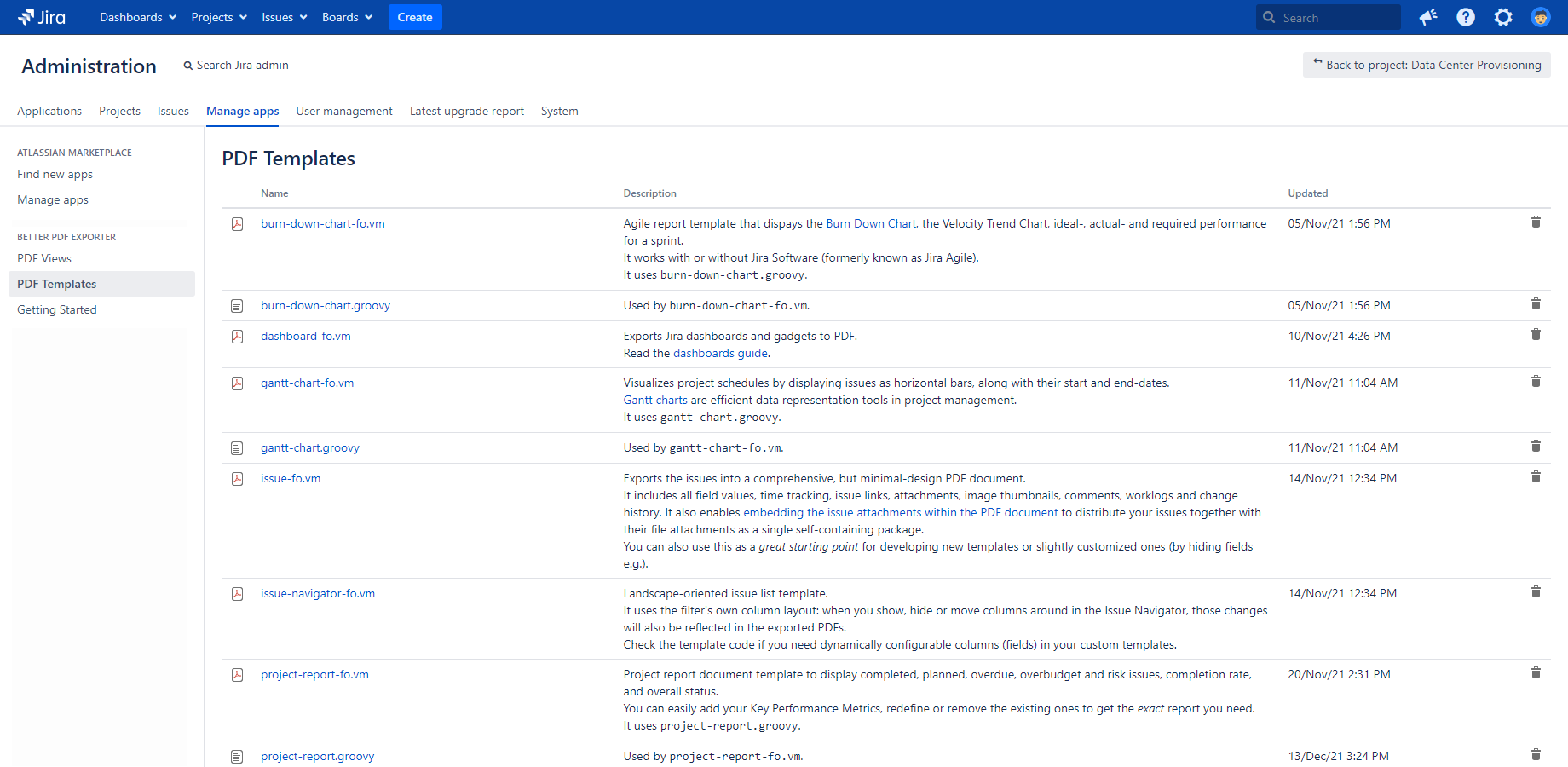
To access this screen, go to Jira administration (on the top-left) → Manage apps → PDF Templates. It requires Jira administrator permissions for obvious reasons.
Add a new PDF resource
You can add a new PDF resource by clicking the button beside the list and filling the form with the resource's properties.
Each PDF resource has the following properties:
- Name: if it is a template, it is used when choosing the template for a PDF view. If it is a script, it is used when executing a script from a template (by name).
- Description: it explains the purpose of the resource.
- Content: the actual content of the resource.
All resources, including PDF templates and Groovy scripts, are plain text files. You can conveniently edit them in the online editor. The editor offers syntax highlighting, collapse/expand block, and other useful features.
Edit an existing PDF resource
You can edit the resource properties by clicking its name in the list.
Delete an existing PDF resource
You can delete a resource by clicking the "delete" action in the list.
Restore the default PDF resources
Similarly to restoring the default views, you can also restore the default resources. Again, use it in exceptional situations and use it carefully.
You can restore the default resources as follows:
- If you are using app version 13.2.0 or above, navigate to PDF Templates, and click the Reset default resources button at the bottom.
-
On older versions, open this URL in your browser:
http://localhost:8086/secure/reset-pdf-resources.jspa?santa
Just replace the localhost:8086 part to match your Jira base URL.
After the successful restore, you will be redirected to the list of the PDF resources.
Important: use this feature carefully, as there is no undo. If something went wrong, remember that resources are saved to the regular Jira back-up.
Security modes
Starting with Better PDF Exporter 13.2.0, the app supports two security modes. These modes control which exact administrator permission is required for app-related administrative operations:
- Classic mode: a more permissive security model. Jira Administrators permission is sufficient for all administrative operations.
- Strict mode: a more restrictive security model that splits permission requirements based on risk level. Jira System Administrators permission is required for sensitive administrative operations (creating, editing, deleting PDF templates and Groovy scripts only), while Jira Administrators is sufficient for non-sensitive ones.
Classic mode is the default for now, but this will change in a future app version. We recommend preparing for the transition by reviewing which of your administrators will need Jira System Administrators access.
Switch between security modes
You can switch between security modes using a JVM system property. Add the following property to your Jira startup configuration and restart Jira:
-Datlassian.darkfeature.jpdf.security.strict.enabled=true
Set the value to true to enable strict mode, or false (or remove the flag entirely) to revert to classic mode.
Starting with Jira 11.2.0, you can also switch modes at runtime using Jira's built-in dark feature mechanism, no restart required. To do this, toggle the jpdf.security.strict.enabled feature flag on the dark features administration screen. Also, set the jira.feature.flags.strict.admin.permissions advanced setting to ensure that this dark feature can only be managed by users with the Jira System Administrators permission.
Next step
Next step: customizing your Jira PDF templates.
Questions?
Ask us any time.