

In this page
Create, edit, and delete schemes
Default scheme
Common field types
CQL fields
Cron fields
Scheme limits
Factory default schemes
Reset factory default schemes
What is common to all scheme types?
This page covers the parts of scheme configuration that work identically for all three scheme types. For details specific to a scheme type, see the Content status schemes, Notification schemes, or Automation schemes page.
Create, edit, and delete schemes
You can manage schemes of any type through their dedicated list screens:
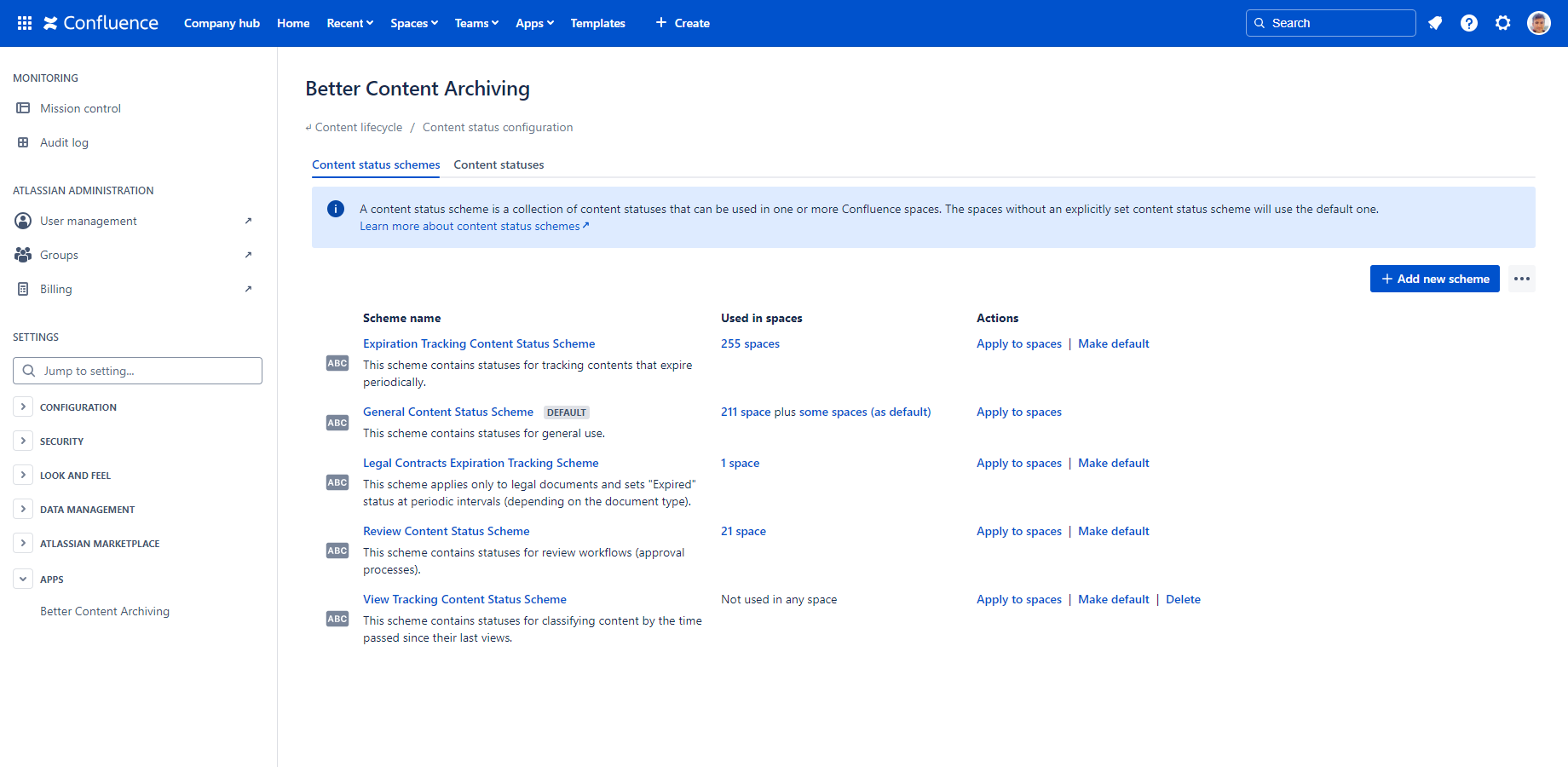
The screen displays the currently defined schemes in a table with the following columns:
- Scheme name: The name and description of the scheme. Click the name to edit the scheme. You can see a marker if the scheme is the default one.
- Used in spaces: A clickable number showing how many spaces have this scheme applied explicitly. For the default scheme, a second clickable number shows how many spaces use it implicitly. Both numbers, when clicked, display the corresponding list of spaces.
-
Actions: These actions apply to the corresponding scheme:
- Apply to spaces (explicitly apply the scheme to spaces)
- Make default (if not the default already)
- Clone (create a copy that can be further customized)
- Delete (if not the default scheme and not used in any spaces)
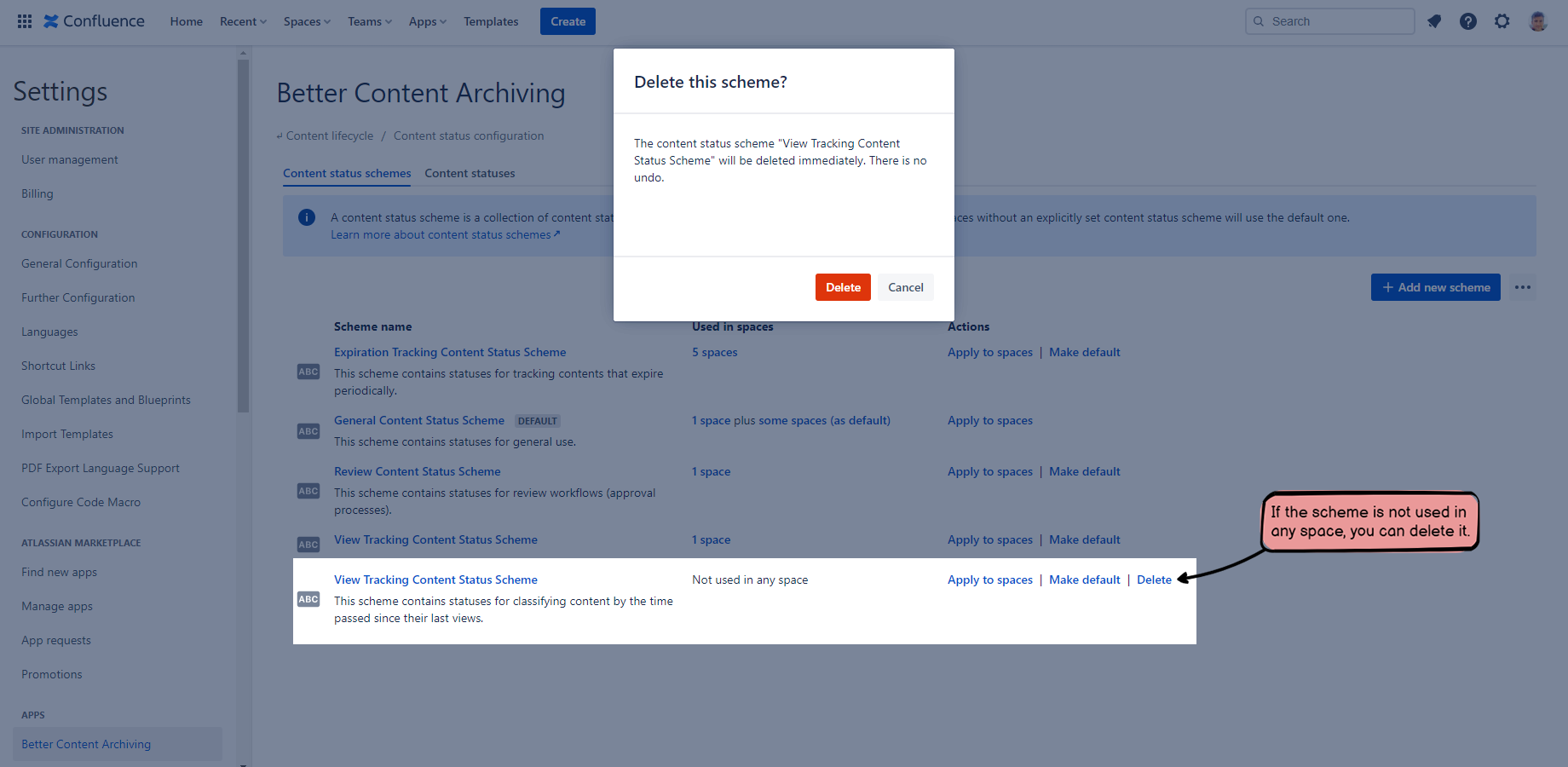
You can create a new scheme using the Add new scheme button on the top. There is also a "..." menu with the following actions:
- Apply the default scheme to spaces unapplies the previously explicitly applied scheme from spaces. As a consequence, the default scheme will be implicitly applied to them.
- Reset schemes restores the factory defaults.
Default scheme
You can set one scheme as the default scheme for each scheme type. How the default scheme works:
- Every space that doesn't have a scheme applied to it explicitly uses the default scheme implicitly.
- Newly created spaces will automatically use the default scheme until a scheme is explicitly applied to them.
- The default scheme cannot be deleted.
- The scheme that is the default scheme can also be applied explicitly.
You can change the default scheme at any time. What happens when you set a new scheme as default?
- All spaces that were using the previous default scheme implicitly will start using the new default scheme.
- Spaces that had the previous default scheme applied explicitly will keep using it, and will not switch to the new default.
Common field types
Several field types are shared across all scheme types. This section covers what's common; see each scheme type's page for field-specific details.
CQL fields
Some scheme item fields let you enter a CQL (Confluence Query Language) query to filter contents. These fields provide the following additional functionality:
- Automatic validation of the CQL query.
- The Examples button provides sample queries for inspiration. Click one to copy it to the field.
- The counter shows the number of matching contents, and up to 10 of them when clicked. It helps confirm that your CQL query returns the contents you intend to see.
Cron fields
Some scheme item fields let you enter a cron expression up to the hour level, which provides a highly flexible way to schedule recurring events. These fields provide the following additional functionality:
- Automatic validation of the cron expression.
- The Examples button provides sample cron expressions for inspiration. Click one to copy it to the field.
- The clock icon shows the first 10 upcoming executions. It helps confirm the correctness of the schedule.
Scheme limits
The following limits apply to schemes:
- Maximum 10 schemes of each type can exist.
- Maximum 10 content statuses can be added to a content status scheme.
- Maximum 20 content statuses can exist in total.
- Maximum 10 notifications can be added to a notification scheme.
- Maximum 20 notification email templates can exist in total.
- Maximum 10 automations can be added to an automation scheme.
Factory default schemes
The Better Content Archiving app comes with a set of factory default schemes (not to be confused with default schemes). They exist so you can start using the app right after installation, without any configuration of your own. Factory default schemes are designed to provide great common defaults, and to be safe to use.
You can customize, clone, or delete them just like any other scheme. In fact, we strongly recommend reviewing and customizing them to implement the exact content lifecycle you are looking for.
Reset factory default schemes
You can reset schemes to their factory default state any time. To do so, go to Confluence Settings (cog icon "⚙" in the top right) → Apps → Better Content Archiving → Configuration → (select the scheme type) → "..." menu on the right above the scheme list, and click Reset schemes.
The reset operation reverts everything to the factory default state. Any customization, newly created scheme, or other change you made, including related configuration like content statuses and notification emails, will be permanently deleted. There is no undo, so be careful!
Questions?
Ask us any time.