

In this page
Create, edit, and delete content statuses
Edit a content status
Factory default statuses
What is a content status?
Content status is a key concept in your content lifecycle management strategy. It conveys the current state of a page or blog post, and determines what should happen to it next. Content statuses are building blocks of content status schemes. A single content status can be reused in any number of schemes.
Create, edit, and delete content statuses
To configure content statuses, navigate to Confluence Settings (cog icon "⚙" in the top right) → Apps → Better Content Archiving → Configuration → Content status configuration → Content statuses tab.
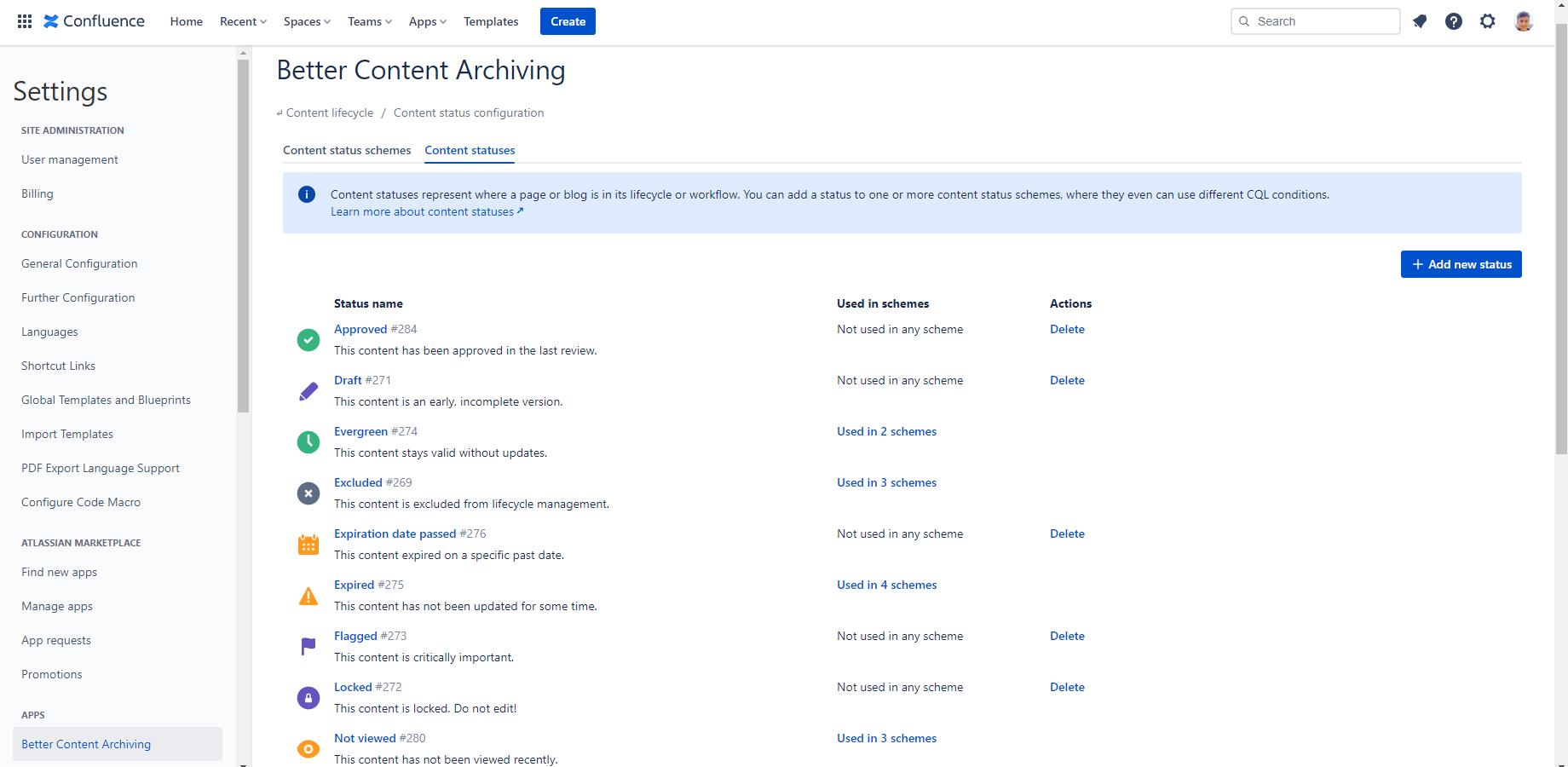
The content status list has the following columns:
- Icon and color: A graphical representation of the status.
- Status name: The name and description of the content status. The numerical ID of the status is also shown. You can use the ID in CQL queries if you have two statuses with the same name, or if you want the query to stay stable across status renames.
- Used in schemes: The number of content status schemes which use this status. Click it to show the list of those schemes on the Content status schemes tab.
- Actions: Clone creates a copy of the status. Delete deletes the status, if it's not used in any content status scheme.
Edit a content status
Create a new content status by clicking the Add new status button on the right above the content status list. Click the name of a status to edit it.
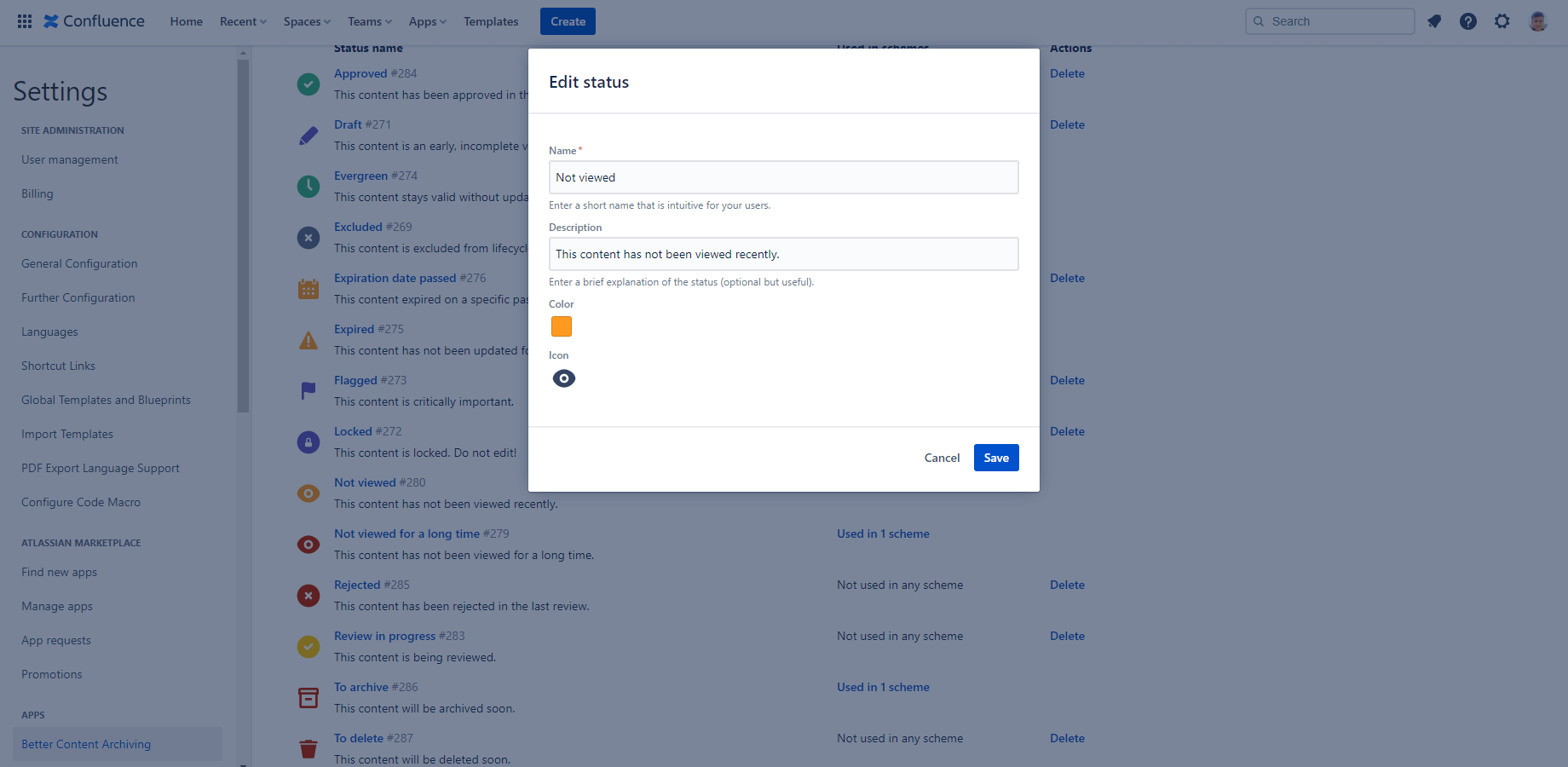
In the editor dialog, you can configure the following:
Name: Enter a name for the content status. Keep it concise and intuitive for users. Avoid duplicates or synonyms that represent the same state, such as "Expired", "Stale", and "Outdated".
Description: Optionally, enter a description for the status. We strongly recommend writing one. It frequently appears together with the name, and it's an opportunity to better explain the status to users.
Icon: Select an icon to represent the status. Choose a well-understood pictogram. For example, a clock fits "Expired" better than a checkmark.
Color: Select a color to represent the status. Choose a color that matches the status's meaning. For example, orange fits "Expired" better than green.
Factory default statuses
There are factory default content statuses for the most common use cases. To reset the factory defaults, you have to reset the content status schemes. Content status schemes and content statuses are reset together.
Questions?
Ask us any time.