

In this page
View status details
The View status details quick action lets you look at the CQL queries the content was checked against in the content status scheme applied to the space. Use it to understand why a page has its current status, or to review the raw data behind it.
How to use
Its icon appears when hovering over the content status value in the Content Status Indicator. The dialog separates this information into three tabs.
Status tab
This tab lists all content statuses in the content status scheme applied to the space that contains the content. Color coding intuitively shows which status was assigned to the content.
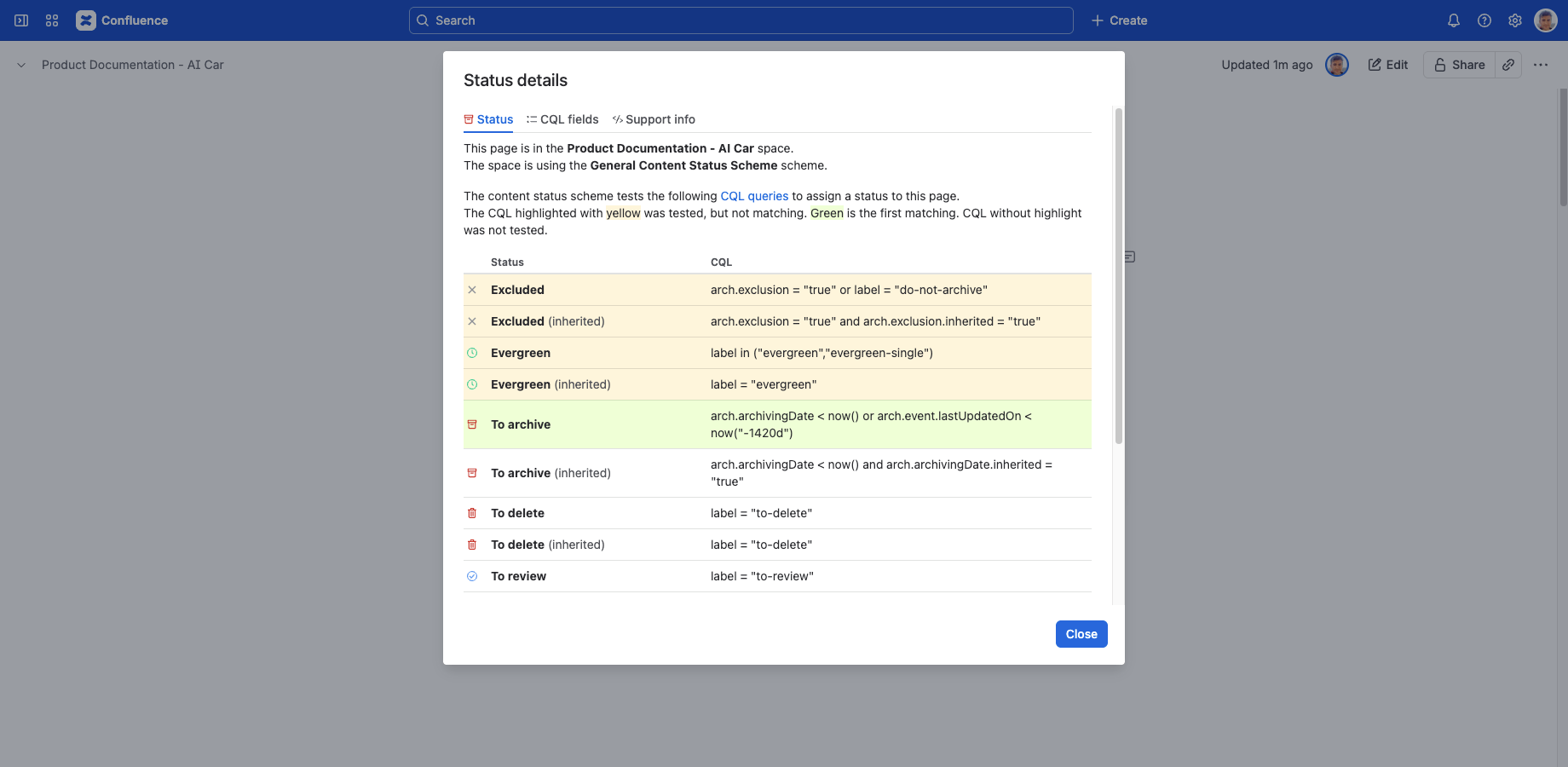
Each status can define one or two CQL queries:
- The first one tests for the content itself.
- The second one (optional) tests for the ancestors.
During the status refresh, the content or its ancestors are tested for the CQL queries one after another. If there is no match for the CQL queries of the first status, the following status is tested next, and so on, until there is a match. If none of the CQL queries match, the default (last) status is assigned. Color coding also marks any statuses that were never tested because the cascade stopped at an earlier match.
CQL fields tab
This tab lists all CQL fields provided by the app for this content with their names and values.
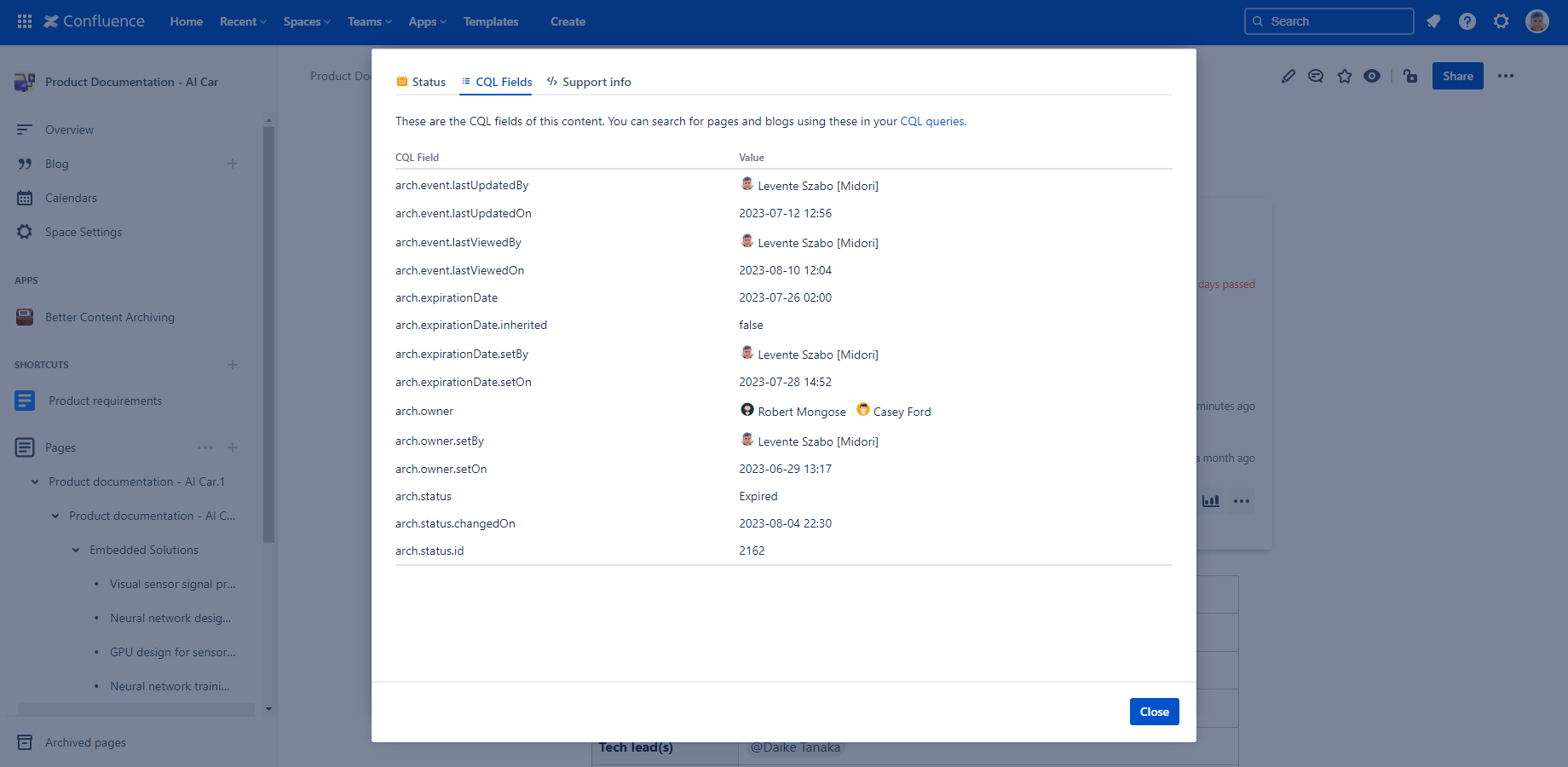
Combine these fields into CQL queries to build powerful, site-wide searches for exactly the content you need. It can also help you troubleshoot why a CQL query doesn't match a content, by checking which fields and values are actually available.
Note that the same values are presented in a more user-friendly way in other parts of the user interface. You need to visit this tab only to see the precise field names or when troubleshooting searches.
Support info tab
This tab shows the content properties applied to the content in JSON format. CQL fields are indexed from these content properties, so this is very low-level, raw data.
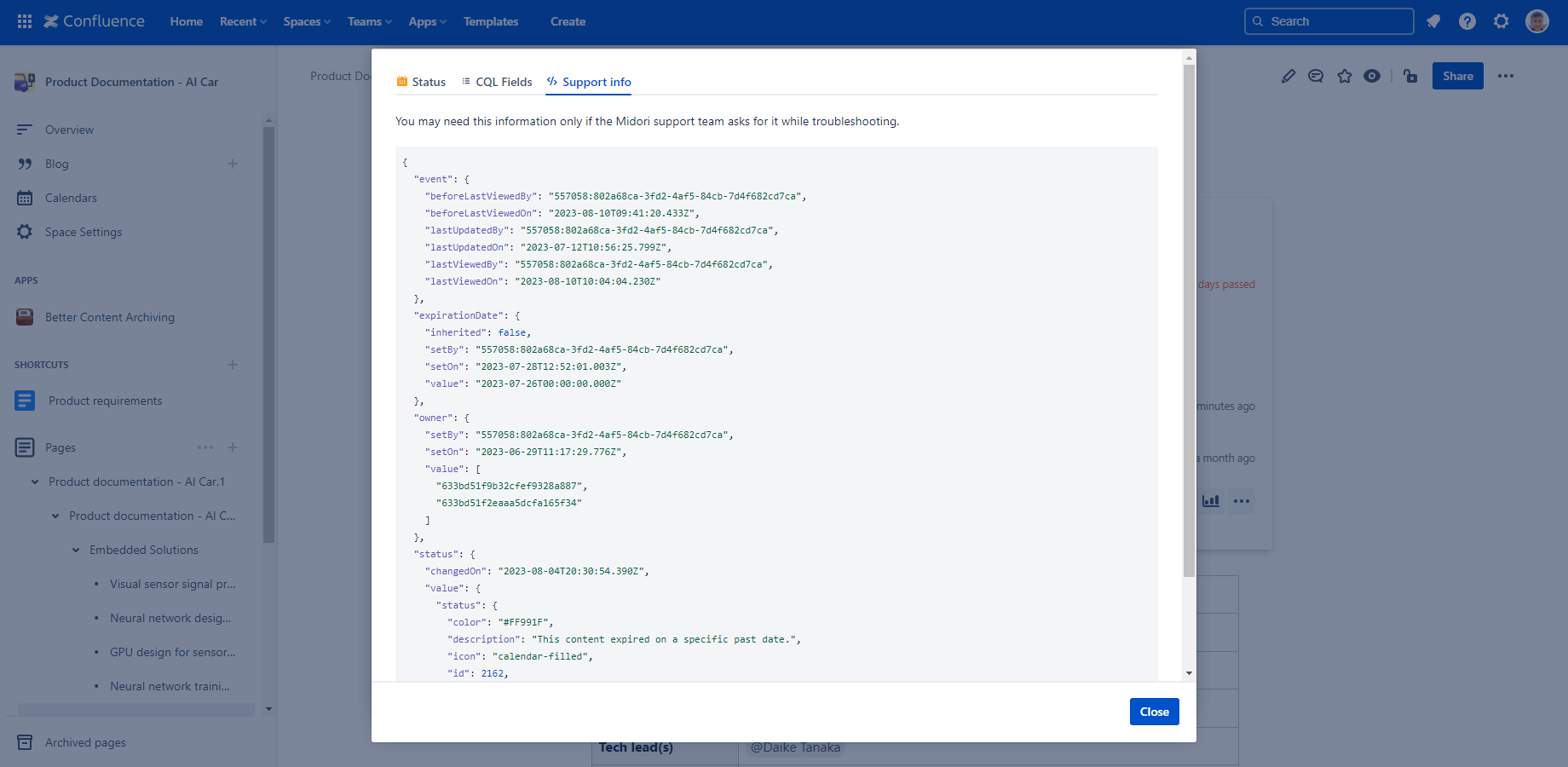
This information can be useful to the Midori support team in case of troubleshooting an issue. You can also use it yourself to see the actual data behind a CQL field, which helps when troubleshooting why a query doesn't behave as expected.
Open ancestor
The Open ancestor quick action opens the ancestor page from which the current page inherits its status. Use it to quickly identify the responsible ancestor, instead of manually checking multiple pages up the content hierarchy.
How to use
Its icon appears when hovering over the content status value in the Content Status Indicator, but only if the status is inherited from an ancestor.
Clicking it takes you directly to the concrete ancestor the status was inherited from, letting you quickly navigate there if you want to edit the source of the inherited value.
Questions?
Ask us any time.