

In this page
Scopes
Content List report for the site
Content List report for a space
Content list as a macro
Content list in popups
Understand the Content List
Work with the Content List
Filter the content list
Navigate the content list
Sort the content list
Use quick actions in the content list
Configure the content list
Export the content list to CSV
Fix content restriction problems
Security
What is a Content List?
A Content list allows you to browse a list of contents (pages, blog posts), with the ability to filter, sort and export the list, and to view important metadata. It is available in multiple contexts across the app, such as on dedicated dashboards, in popups, and in macros. The features of the content list are identical everywhere it appears.
Scopes
The Content List dashboard is available for the whole Confluence site and for any single space. As a generic content browsing interface, it is also available as macros and in content list popups.
Content List report for the site
For the site scope report, expand the Apps section in the left-bar (not Space apps!) → click the Better Content Archiving app → Content list tab. In this scope, the report covers all spaces, all contents and all activities on the site.
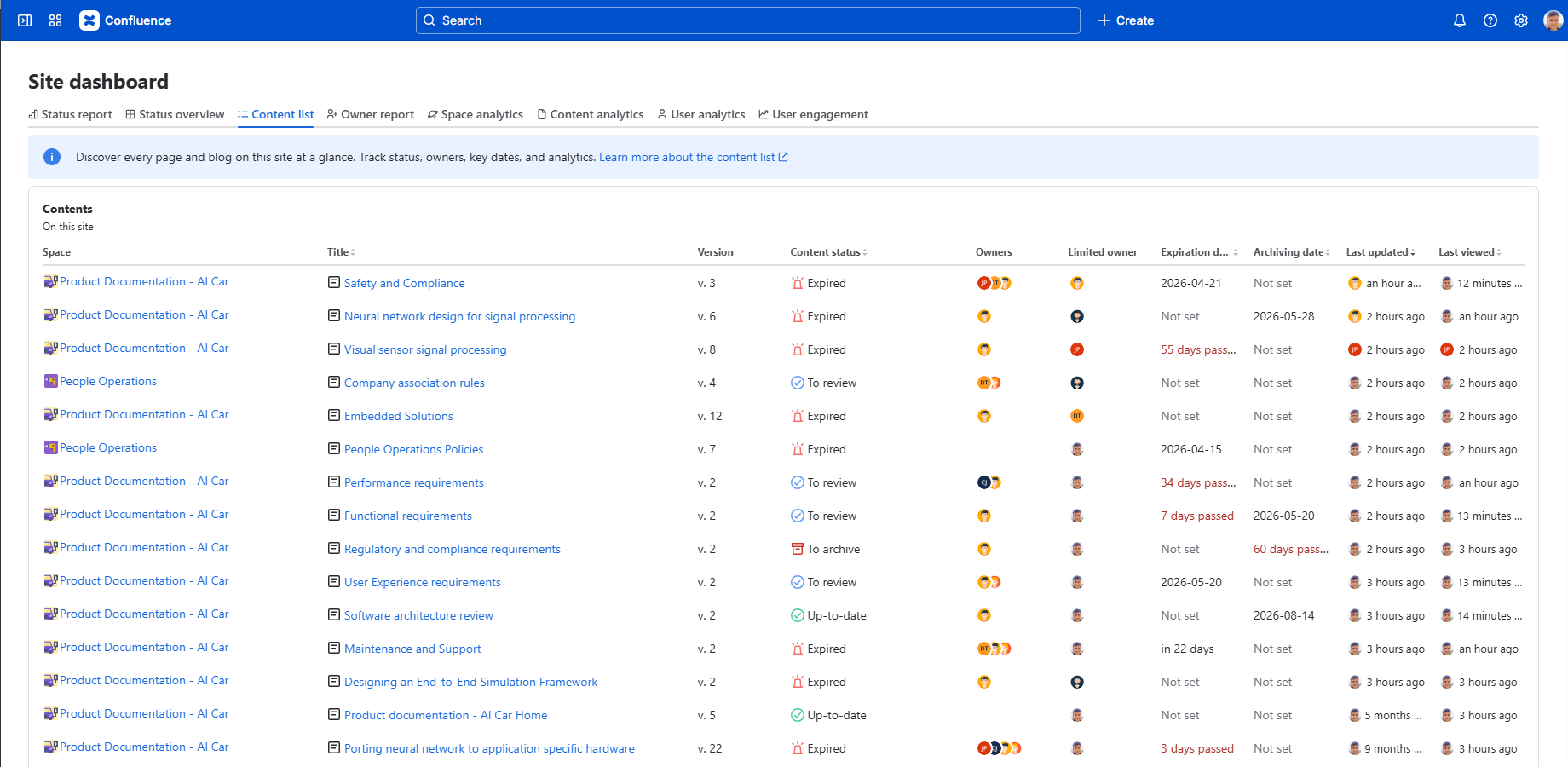
The report displays all contents on the site, regardless of their space, initially, but you can filter it to your needs.
Content List report for a space
For the space scope report, go to the space → expand the Space apps section in the left-bar (not Apps!) → click the Better Content Archiving app → Content list tab. In this scope, the report covers only that single space, the contents and the activities in it.
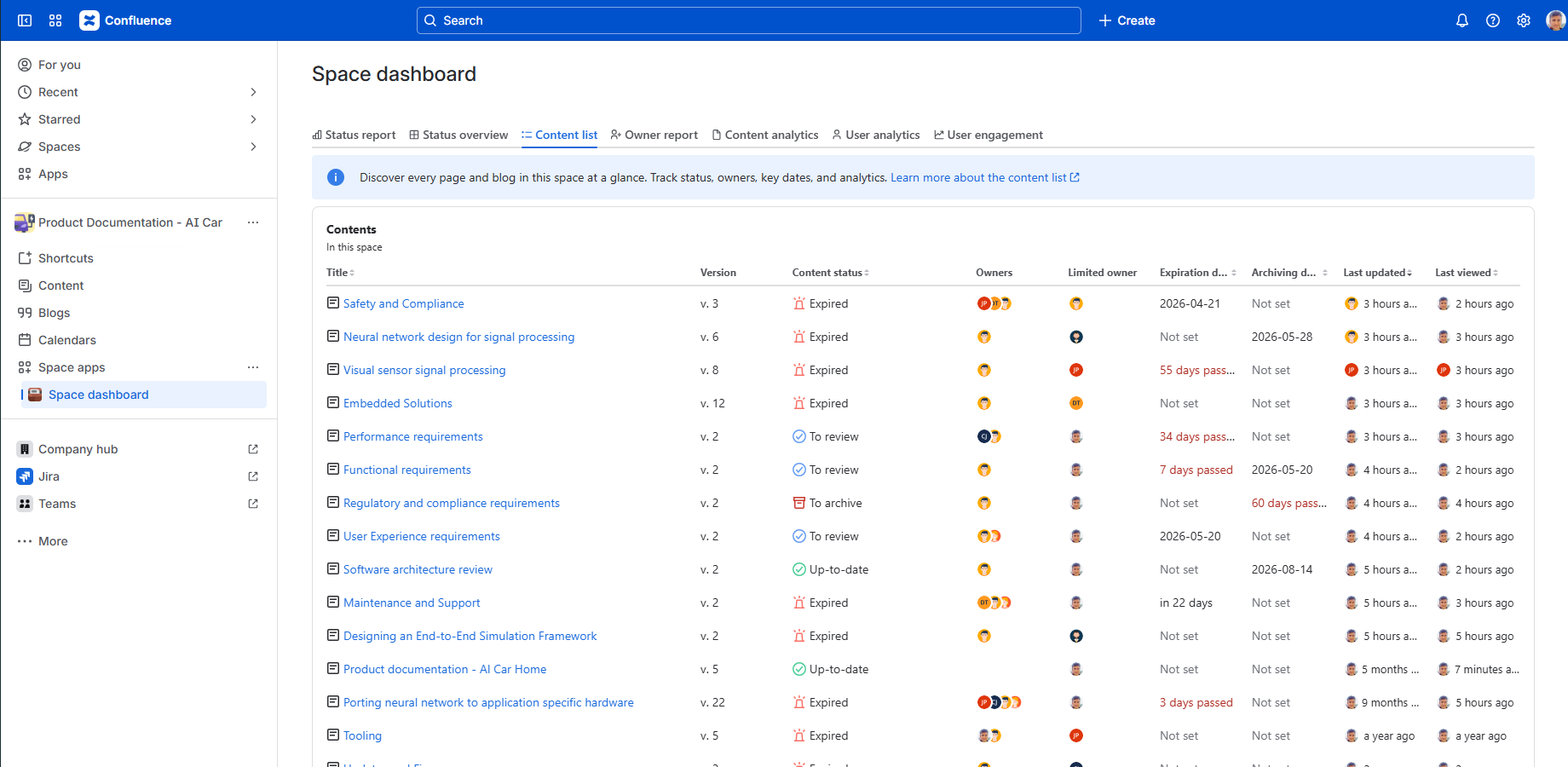
The report displays only the contents in the space, initially, but you can filter it to your needs.
Content list as a macro
The Content list is also available as a macro that you can insert into any page. In this case, it will display the contents returned by the CQL query configured as a macro parameter.

For more information, see the Content Status List macro documentation.
Content list in popups
When you click on various numeric content statistics throughout dashboards, a fully featured Content list popup will appear.
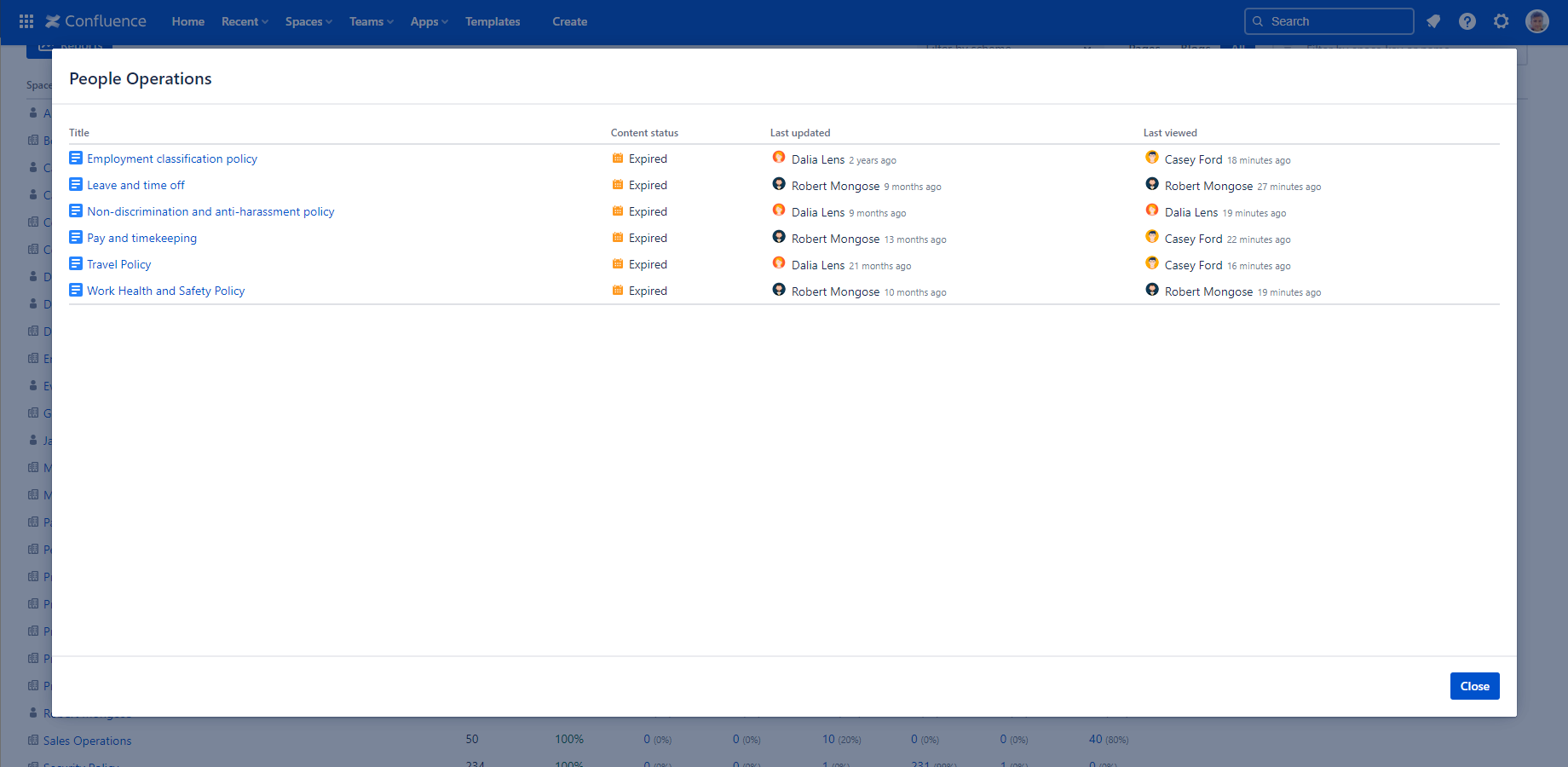
The initial filter settings match the statistic you clicked on, for example a specific space and status, or specific ownership. You can freely change the filter afterward.
Understand the Content List
A Content list displays a set of contents (pages, blog posts) based on the context:
The content list can display the following columns, depending on the configuration:
- Space: Enclosing space of the content, with a link to the space itself. The space is opened in a new tab. (For macros, you can also configure whether to open the link in a new tab or not.)
- Parent: Title of the content's parent, with a link to the content itself, if available. The content is opened in a new tab. (For macros, you can also configure whether to open the link in a new tab or not.)
- Title (always shown): Title of the content, with a link to the content itself. The content is opened in a new tab. (For macros, you can also configure whether to open the link in a new tab or not.)
- Version: Version number of the content.
- Labels: Labels applied to the content.
- Content status: Status assigned by the app, as defined by the enclosing space's content status scheme. If the list is shown in a macro and the content is in an excluded space, it is marked with "Excluded" here.
- Owners: Zero or more content owners (managed by the app). Click a user's avatar to see their profile in a new tab.
- Limited owner: Content owner (managed by Confluence). You can click the user's avatar to see their profile in a new tab.
- Expiration date: Expiration date of the content, if set.
- Archiving date: Archiving date of the content, if set.
- Last update: Last update date and updating user. You can click the user's avatar to see their profile in a new tab.
- Last view: Last view date and viewing user. You can click the user's avatar to see their profile in a new tab.
- Creator: Shows who created the content and when. You can click the user's avatar to see their profile in a new tab.
Archived and draft contents are never listed.
Notes about inherited fields:
- The Expiration date and Archiving date columns (if their values are set) always display the dates directly set on the content. That means if the content inherits an earlier date from an ancestor (which would make it the effective date), that inherited value is not calculated by the Expiration date and Archiving date columns! To view the effective expiration or archiving date, open the corresponding quick action dialog.
- On the other hand, inherited owners (if there are any) are always already included in the user list displayed in the Owners column.
Work with the Content List
The content list is not just a plain list of pages, it comes with several features around it. These features are crucial for efficient, day-to-day content management work.
Filter the content list
Above the content list, you will find filters that you can use to narrow down the list of contents you want to see.
Depending on which context you are in, some filters may be initialized with default values. Occasionally, these defaults cannot be changed, for example the space filter is disabled in contexts opened from within a space.
The following filters are available:
- Space: limit the result set to contents in the specified spaces.
- Content type: limit the result set to pages or blogs.
- Search content: free text content search.
- Content status: limit the result set to contents in one of the specified statuses.
- Owners: limit the result set to contents owned by the specified users, or contents that have an owner set, or contents that have no owner set.
- Limited owner: filter the result set by the "limited owner" (the owner managed by Confluence).
- Creator: filter the result set by the creator of the content.
You can click Run or press Enter to run the filter. You can click Clear (or Reset in contexts where the filter is initialized with defaults) to return the filter to its initial state.
Navigate the content list
You can use the pagination controls at the bottom of the list to browse through the content list. You can refresh the current view using the Refresh button on the bottom right.
Sort the content list
You can click a sortable column header to sort the list by that column, in ascending or descending order.
Use quick actions in the content list
You can access quick actions directly from certain columns, allowing you to change content status and other fields without leaving the list.
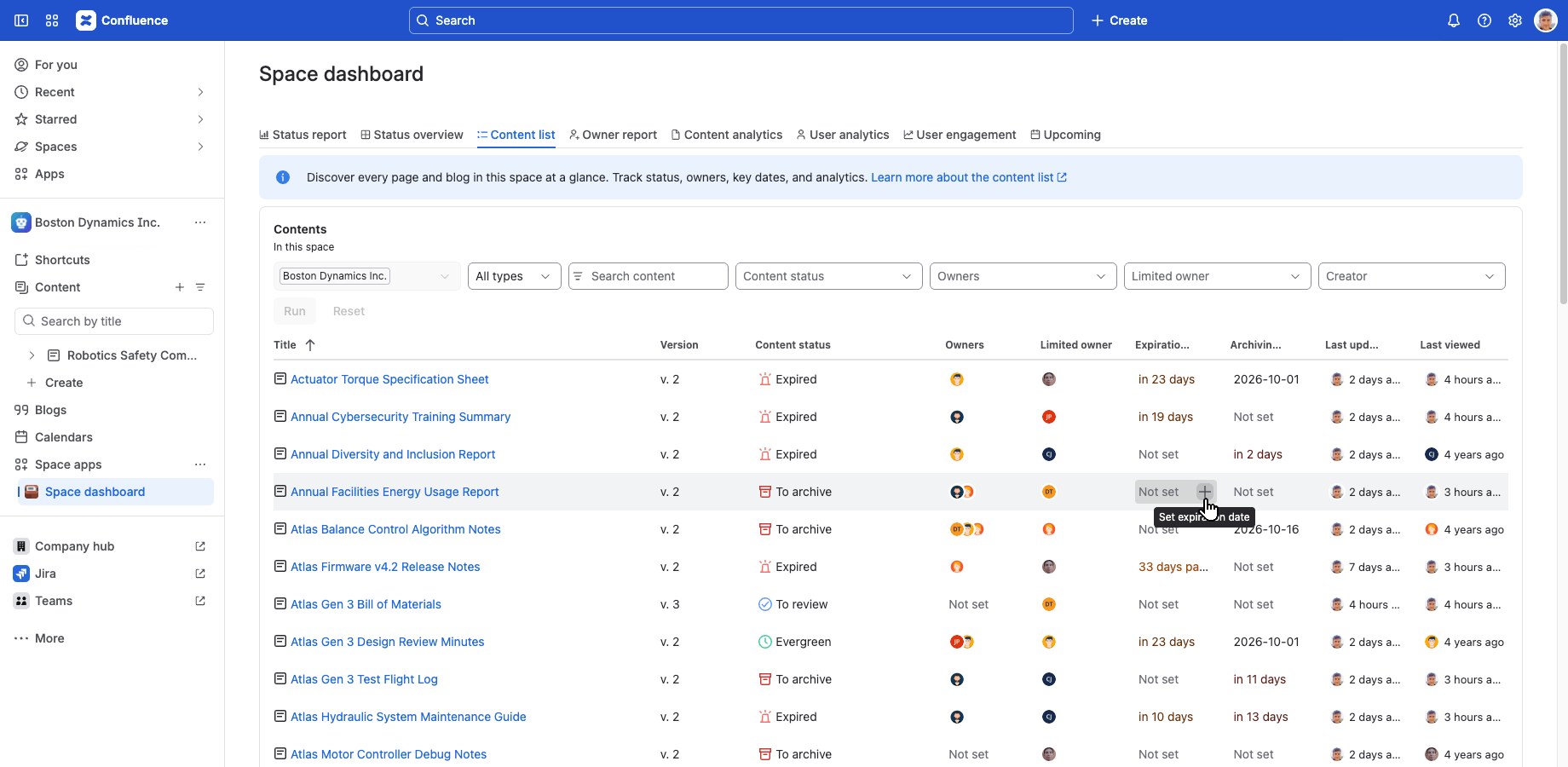
The following columns support quick actions:
- Content status: View status details
- Owners: Set owners
- Expiration date: Set/remove expiration date
- Archiving date: Set/remove archiving date
- Last update: Content update analytics
- Last view: Content view analytics
Notes:
- Some changes take time to be reflected in the list.
- After using a quick action that affects the content displayed in the list, the current page is refreshed automatically. Depending on the quick action used, the content status or owner information may need to be recalculated. In such cases, these fields may temporarily become outdated.
- Fields can also become outdated as a result of quick actions applied earlier or by other concurrent users.
- A blurred field indicates an outdated value. Hover over the blurred value with your mouse cursor (or focus on it using the keyboard) to make the value clear and readable.
Configure the content list
You can use the Settings (indicated by a cog icon) below the content list to configure:
- the columns to be displayed
- the page size (how many contents to display on one page of the list)
Configuration is saved per user, per context, so each user can configure the list as they prefer.
Export the content list to CSV
You can use the Download CSV button to export the list of contents as a CSV file. You can open it in Excel, Google Sheets, or any other tool that can import CSV files:
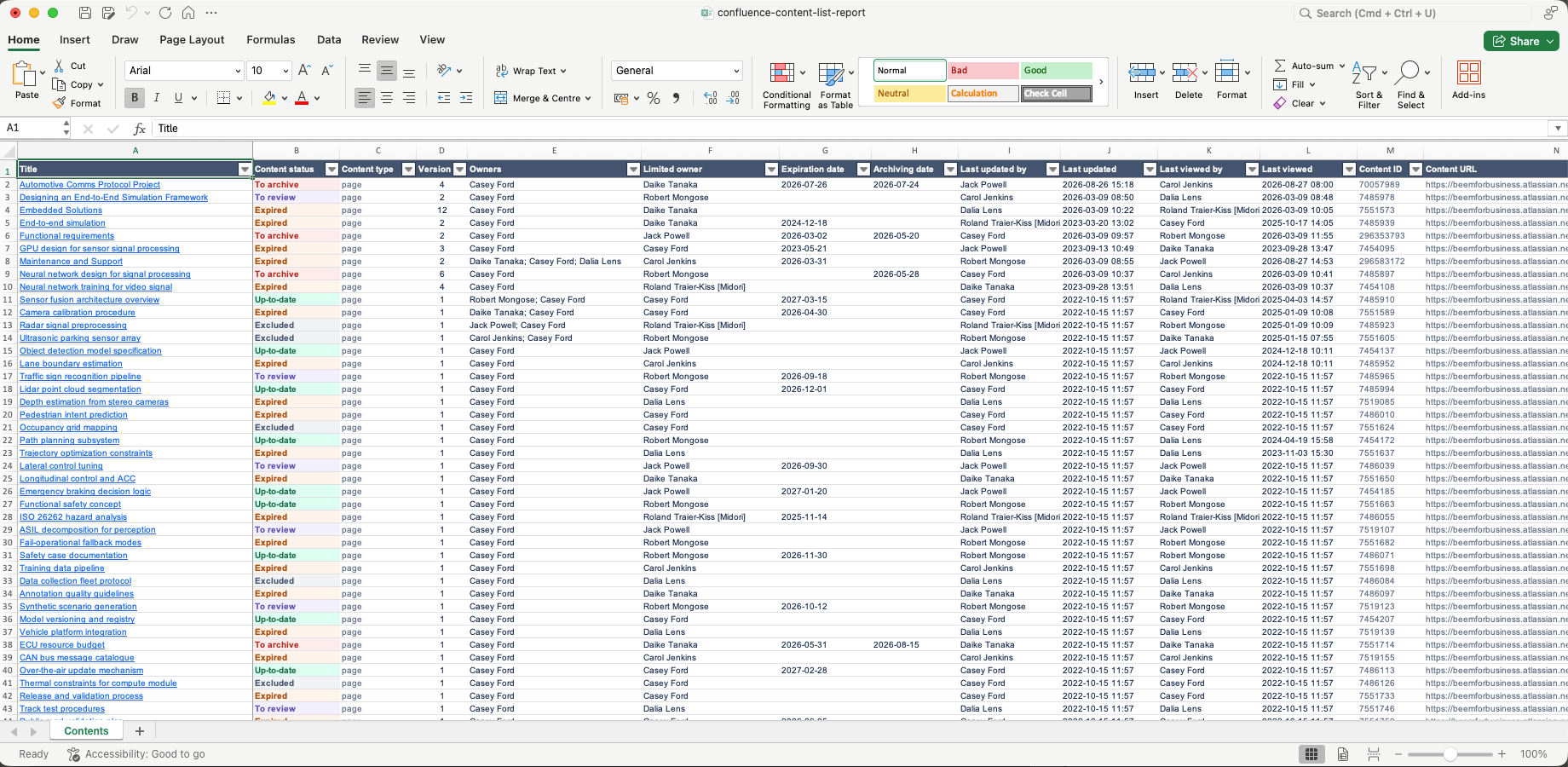
The CSV file will contain the currently displayed columns and rows, sorted as in the browser. One column on the user interface may explode to multiple columns in the CSV file, so that you have not only the space name, but also its ID, key and such. See the table below for details. You can easily remove the columns you don't need using any CSV compatible tool.
| Column in the content list | Columns in the CSV file |
|---|---|
| Space | Space URL |
| Space ID | |
| Space key | |
| Space name | |
| Parent | Parent URL |
| Parent ID | |
| Parent type | |
| Parent title | |
| Title | Content URL |
| Content ID | |
| Content type | |
| Content title | |
| Version | Version (in "v. 21" format) |
| Labels | Labels (comma separated list) |
| Content status | Content status |
| Owners | Owner IDs (comma separated list of Atlassian user IDs) |
| Owners (comma separated list of names) | |
| Limited owner | Limited owner ID (Atlassian user ID) |
| Limited owner (name) | |
| Expiration date | Expiration date (in "YYYY-MM-DD HH:mm" format) |
| Archiving date | Archiving date (in "YYYY-MM-DD HH:mm" format) |
| Last update | Last updater ID (Atlassian user ID) |
| Last updater (name) | |
| Last updated (in "YYYY-MM-DD HH:mm" format) | |
| Last view | Last viewer ID (Atlassian user ID) |
| Last viewer (name) | |
| Last viewed (in "YYYY-MM-DD HH:mm" format) | |
| Creator | Creator ID (Atlassian user ID) |
| Creator (name) | |
| Created (in "YYYY-MM-DD HH:mm" format) |
Fix content restriction problems
The content list flags pages the app cannot process due to restrictions that exclude the app user: the row shows a warning icon instead of the content type icon, and the Content status column is marked with a clickable "Cannot refresh".
You can click it to grant the app access without leaving the content list. Until access is granted, the page's status won't update, and its quick actions are unavailable.
Security
The Content list is available for all users. It respects the Confluence space permissions and page restrictions.
As the list is personalized for the user who opens it, your view and your teammate's may be different.
Questions?
Ask us any time.