

In this page
Anatomy of an automation scheme
How it is used
Tutorial video
Work with automation schemes
Create, edit, and delete automation schemes
Edit an automation scheme
Edit an automation
Factory default automation schemes
Advanced topics
Archiving pages with view restrictions
Automations on pages with children
What is an automation scheme?
A key part of your content retention strategy is automatically archiving, deleting (logical deletion), and purging (physical deletion) content that has reached the end of its lifecycle. Automation schemes let you configure and schedule these actions to run periodically. This keeps your Confluence spaces reliable and compliant, with high-quality information for your users and context for your AI agents.
Anatomy of an automation scheme
An automation scheme has:
- a name
- an optional description
- a list of automations
Each automation has:
- a schedule to define when to run the automation
- a CQL search query to collect the contents to process
- content categories to search in (current and/or archived contents)
- an action to execute on the matching contents
The order of automations in the scheme is important: a content is processed by only the first automation that matches it.
How it is used
Automation schemes are used by the Execute automations job. See how it works there.
Tutorial video
Watch this tutorial video on automations in action:

Work with automation schemes
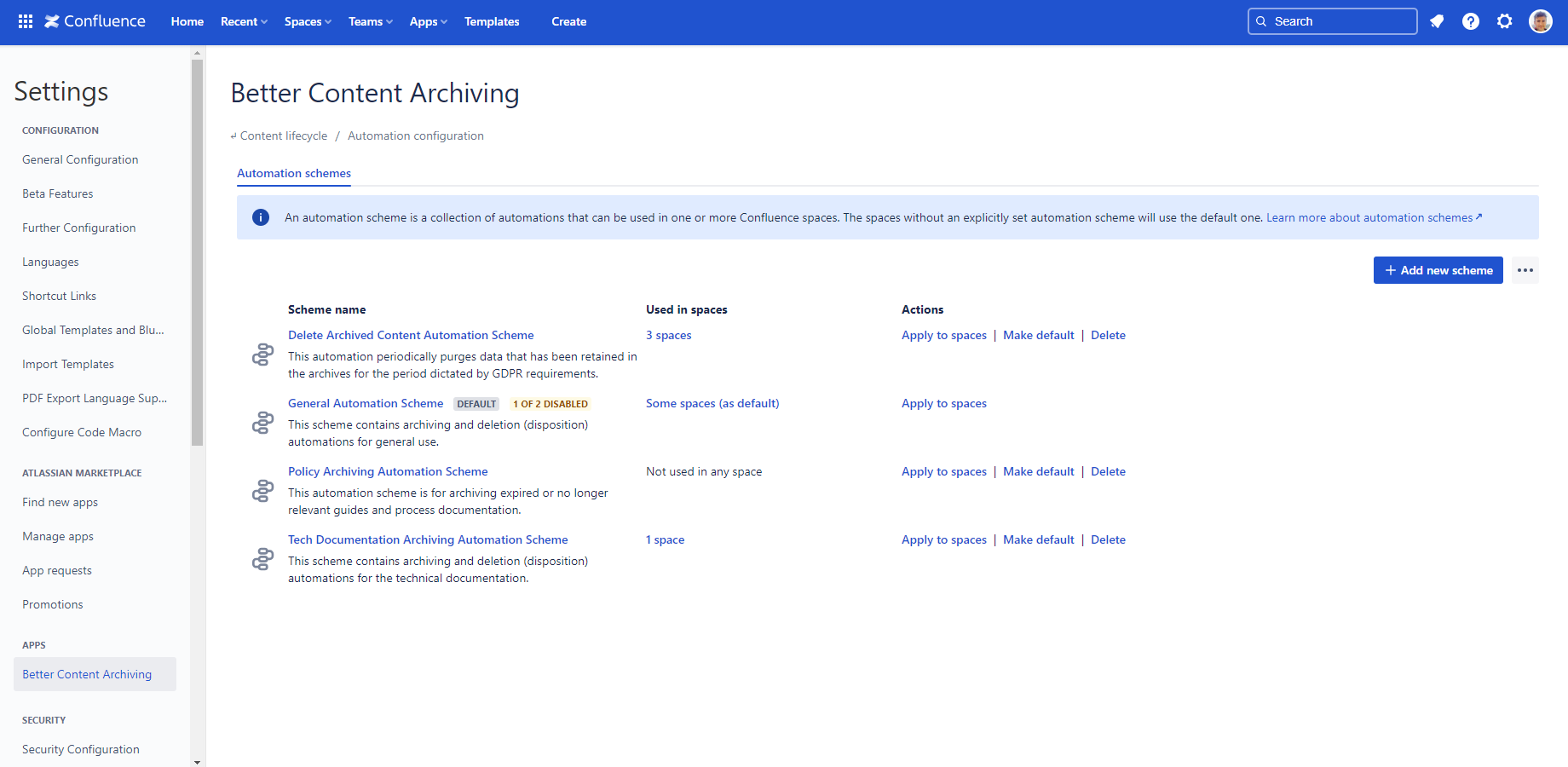
To work with automation schemes, navigate to Confluence Settings (cog icon "⚙" in the top right) → Apps → Better Content Archiving → Configuration → Automation configuration.
Automation schemes work the same way as any other scheme type. Learn more about schemes in general, how to work with them, and how to apply them to spaces.
Create, edit, and delete automation schemes
You can create, edit, and delete automation schemes the same way as any other scheme type.
Edit an automation scheme
Click the name of an automation scheme to edit it:
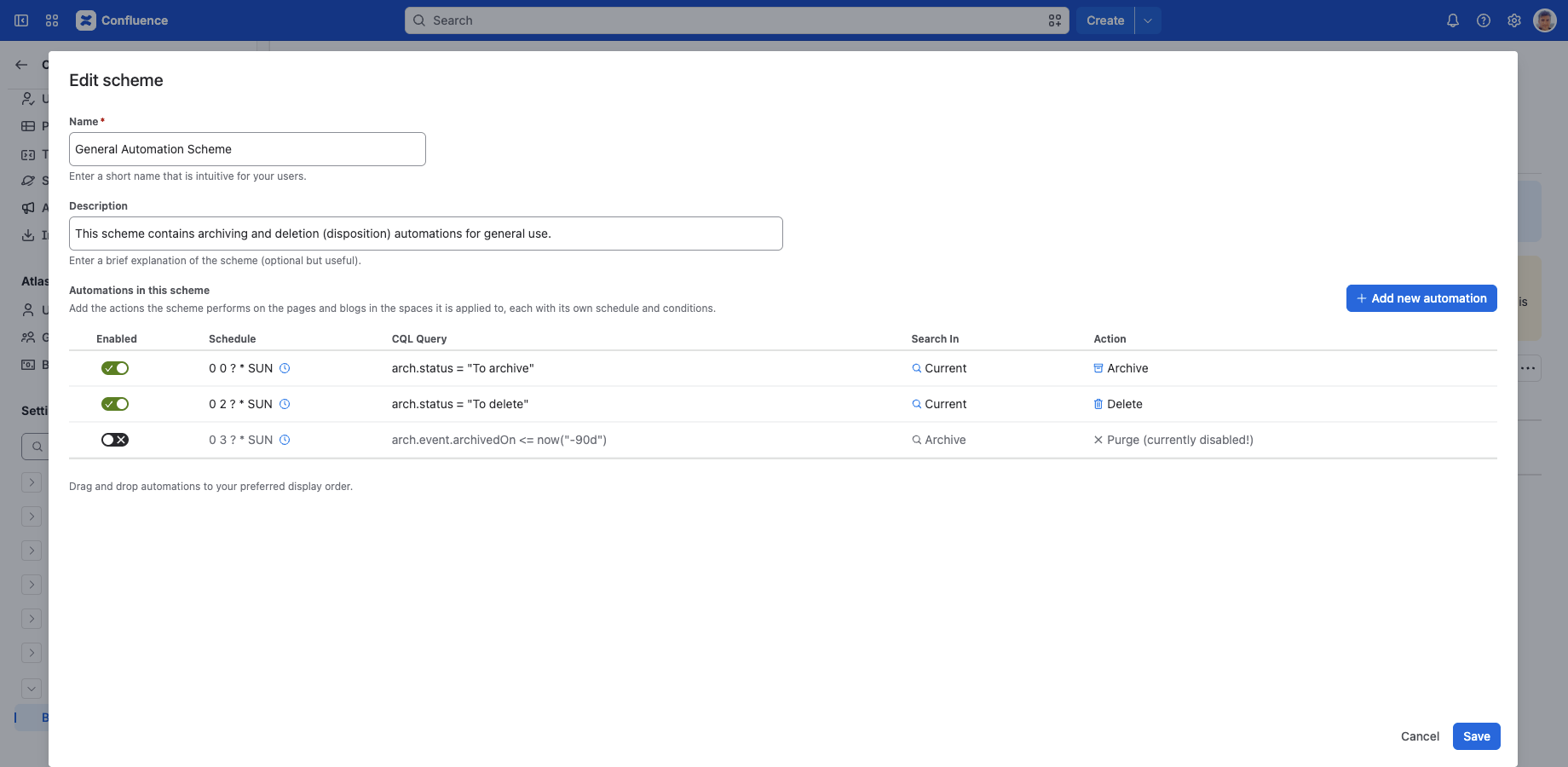
At the top, you can enter the scheme's name and an optional description. We recommend giving both an intuitive name and description. They also appear on other screens, such as when applying schemes to spaces, or when checking which scheme a space uses. This makes it easier to confirm that every space uses the correct scheme.
You can edit the automations contained by the scheme on the bottom part of the dialog. Use the Add new automation button above the list to add a new automation. Click the Edit icon on an automation to edit it, which opens a new dialog for that automation. Click the Delete icon on an automation to delete it; this permanently deletes it after a confirmation, and there is no undo. You can reorder the automations in the list simply by drag and drop.
Edit an automation
In the editor dialog, you can configure the following:
Enabled: Turn a particular automation on or off with this toggle. This is useful to temporarily disable an automation. If you won't need it anymore, delete it instead to keep your scheme simple.
Schedule: (cron field) Enter a cron expression up to the hour level to determine when to run the automation. Cron is extremely flexible.
CQL query: (CQL field) Enter a CQL query (filter) that selects the contents to be processed by the automation. A typical example would be to query for contents in the "To archive" status.
Tip: CQL queries don't have to use the custom CQL fields provided by the app; you can use any Confluence CQL field. For example, you can create an automation that archives pages labelled with "report", 3 months after their creation. None of these fields are managed by the app.
Search in: Check whether to search in Current pages and blog posts, Archived pages, or both. Note that searching in archived pages is not allowed when using the Archive action, for obvious reasons.
Action: Select how to process the matched contents. The app currently supports the following actions:
- Archive
- Delete (logical removal, by moving contents to the trash)
- Purge (permanent removal, cannot be undone!)
The Purge automation action can only be selected if the Enable purge automation actions setting is enabled in Global Settings. Any already defined purge automations will be ignored while this setting is disabled.
Factory default automation schemes
Right after installation, a few automation schemes are already created for you. Like all factory default schemes, they are designed to be intuitive, work well for most teams, and be conservative by default.
In factory default automation schemes, only the archiving automation is enabled. This prevents executing unwanted automations before you configure and enable them.
Advanced topics
Archiving pages with view restrictions
Confluence's built-in archiving feature has a serious security flaw: it deletes view restrictions when archiving a page! As a result, people who couldn't see the page before it was archived will be able to see it afterwards.
Better Content Archiving for Confluence extends the built-in archiving by strictly preserving both direct and inherited page restrictions. It works out the effective permissions for each page, then re-applies them during the archiving process. This guarantees that view-restricted content remains accessible only to users who had permission prior to archiving.
Automations on pages with children
By default, automations skip parent pages, that is, pages that have children. This prevents automations from altering your content hierarchy: if a parent page were processed, its children would move up a level, which could cause unwanted side effects.
You can change this under Global settings.
Questions?
Ask us any time.