

In this page
Anatomy of a notification scheme
How it is used
Tutorial video
Work with notification schemes
Create, edit, and delete notification schemes
Edit a notification scheme
Edit a notification
Factory default notification schemes
What is a notification scheme?
Notification schemes are used to periodically send customizable notification emails to content owners, authors, space administrators, and other stakeholders about content that needs attention. Set it up once, and the app takes care of the rest: notifications are sent automatically, with no manual work required.
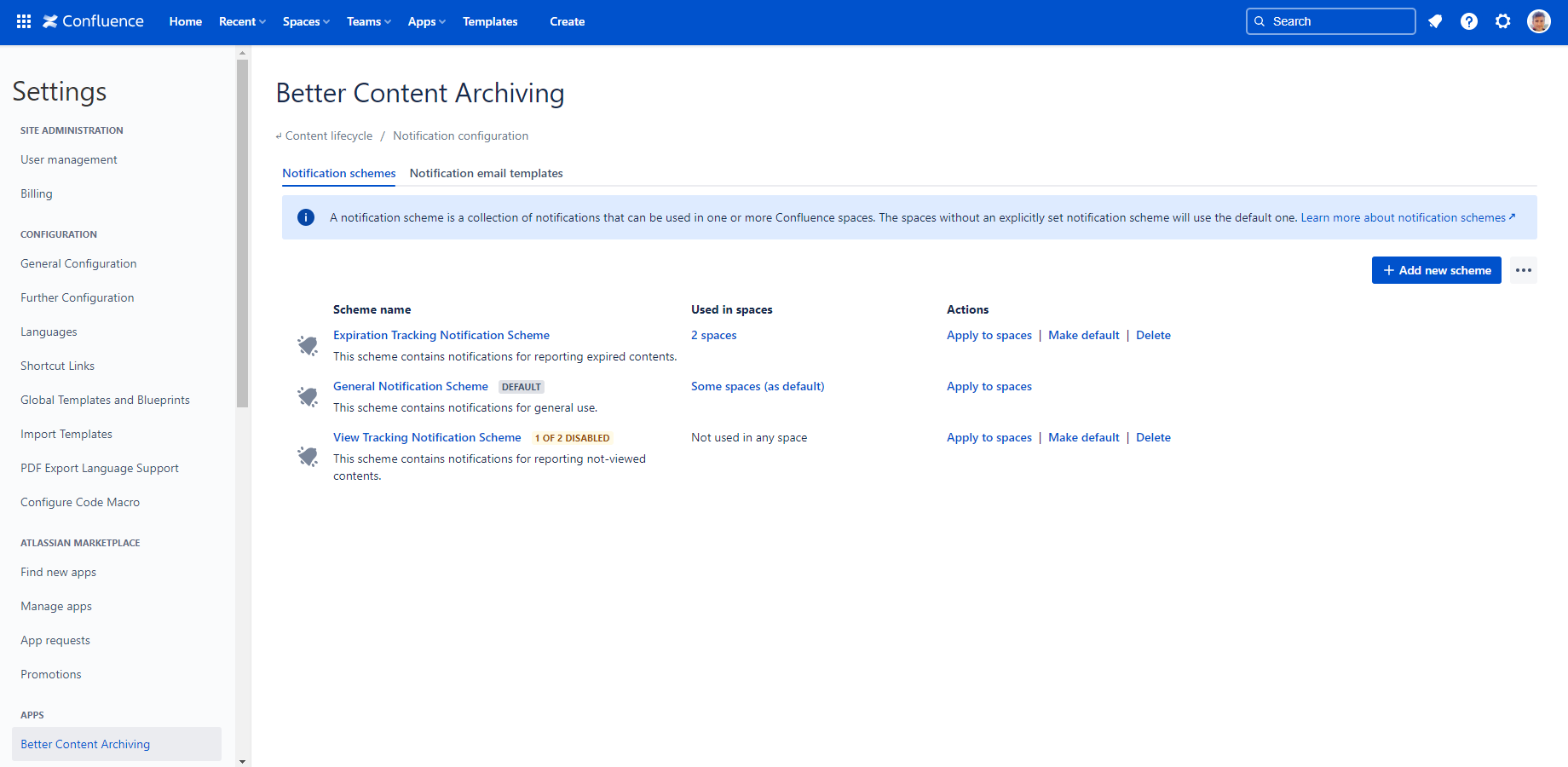
Anatomy of a notification scheme
A notification scheme has:
- a name
- an optional description
- a list of notifications
Each notification has:
- a schedule to define when to send the notification
- a CQL query to collect the contents to list in the notification email
- content categories to search in (current and/or archived contents)
- a notification email template to define the notification's content
- recipients to define who receives the notification
You can arrange notifications in whatever order you prefer.
How it is used
Notification schemes are used by the Send notifications job. See how it works there.
Tutorial video
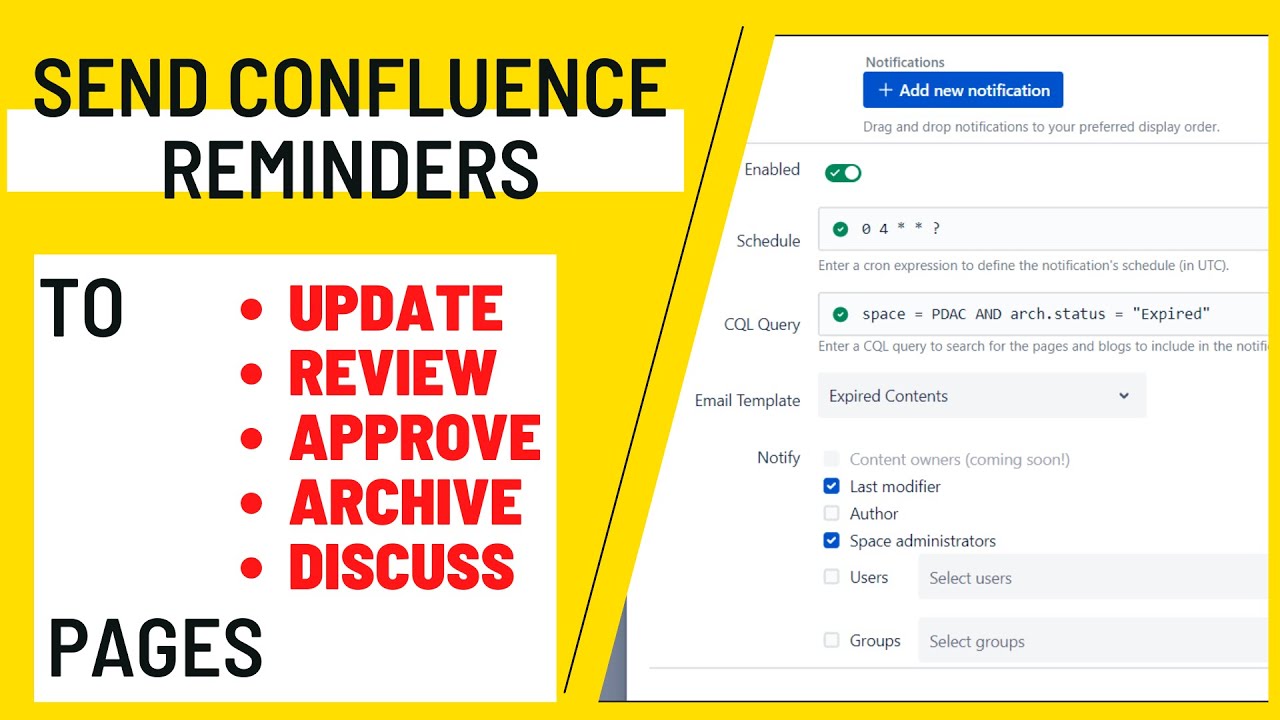
Watch this tutorial video on notifications in action:

Work with notification schemes
To work with notification schemes, navigate to Confluence Settings (cog icon "⚙" in the top right) → Apps → Better Content Archiving → Configuration → Notification configuration.
Notification schemes work the same way as any other scheme type. Learn more about schemes in general, how to work with them, and how to apply them to spaces.
Create, edit, and delete notification schemes
You can create, edit, and delete notification schemes the same way as any other scheme type.
Edit a notification scheme
Click the name of a notification scheme to edit it:
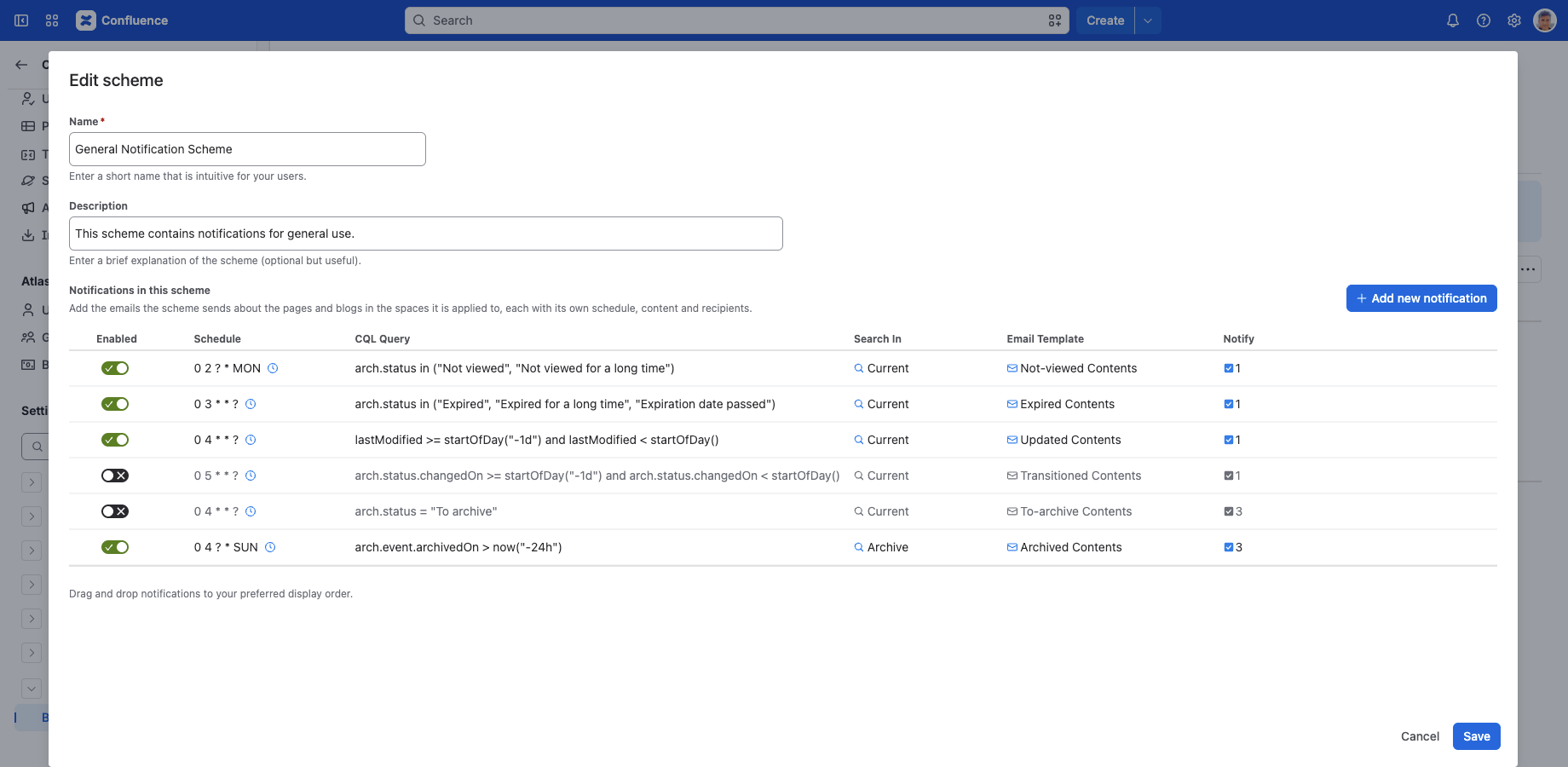
At the top, you can enter the scheme's name and an optional description. We recommend giving both an intuitive name and description. They also appear on other screens, such as when applying schemes to spaces, or when checking which scheme a space uses. This makes it easier to confirm that every space uses the correct scheme.
You can edit the notifications contained by the scheme on the bottom part of the dialog. Use the Add new notification button above the list to add a new notification. Click the Edit icon on a notification to edit it, which opens a new dialog for that notification. Click the Delete icon on a notification to delete it; this permanently deletes it after a confirmation, and there is no undo. You can reorder the notifications in the list simply by drag and drop.
Edit a notification
In the editor dialog, you can configure the following:
Enabled: Turn a particular notification on or off with this toggle. This is useful to temporarily disable a notification. If you won't need it anymore, delete it instead to keep your scheme simple.
Schedule: (cron field) Enter a cron expression up to the hour level to determine when to send the notification. Cron is extremely flexible.
CQL query: (CQL field) Enter a CQL query (filter) that selects the contents to be included in the notification. A typical example would be to query for contents in the "Expired" status.
Tip: CQL queries don't have to use the custom CQL fields provided by the app; you can use any Confluence CQL field. For example, you can create a notification for pages labelled with "report", 3 months after their creation. None of these fields are managed by the app.
Search in: Check whether to search in Current pages and blog posts, Archived pages, or both.
Email template: Select a notification email template for the notification. You can use the default templates, which work well for common use cases, customize those, or introduce your own templates.
Notify: Check who should receive the notification:
- last modifier
- author
- content owners
- limited owner (Atlassian owner)
- space administrators
- a specific set of users (up to 10)
- a specific set of groups (up to 10)
You can check any combination of these recipients; they are not mutually exclusive.
Factory default notification schemes
Right after installation, a few notification schemes are already created for you. Like all factory default schemes, they are designed to be intuitive, work well for most teams, and be conservative by default.
In factory default notification schemes, all notifications are disabled. This prevents sending unwanted notifications before you configure and enable them.
Questions?
Ask us any time.