

In this page
What is a Confluence macro?
Macros are useful for generating dynamic content on Confluence pages and blog posts. Macros can extend Confluence capabilities in many ways, like generating content lists or embedding external content, for example.
This page details the macros that integrate with the content lifecycle management functionality offered by the Better Content Archiving app.
Content Status List macro
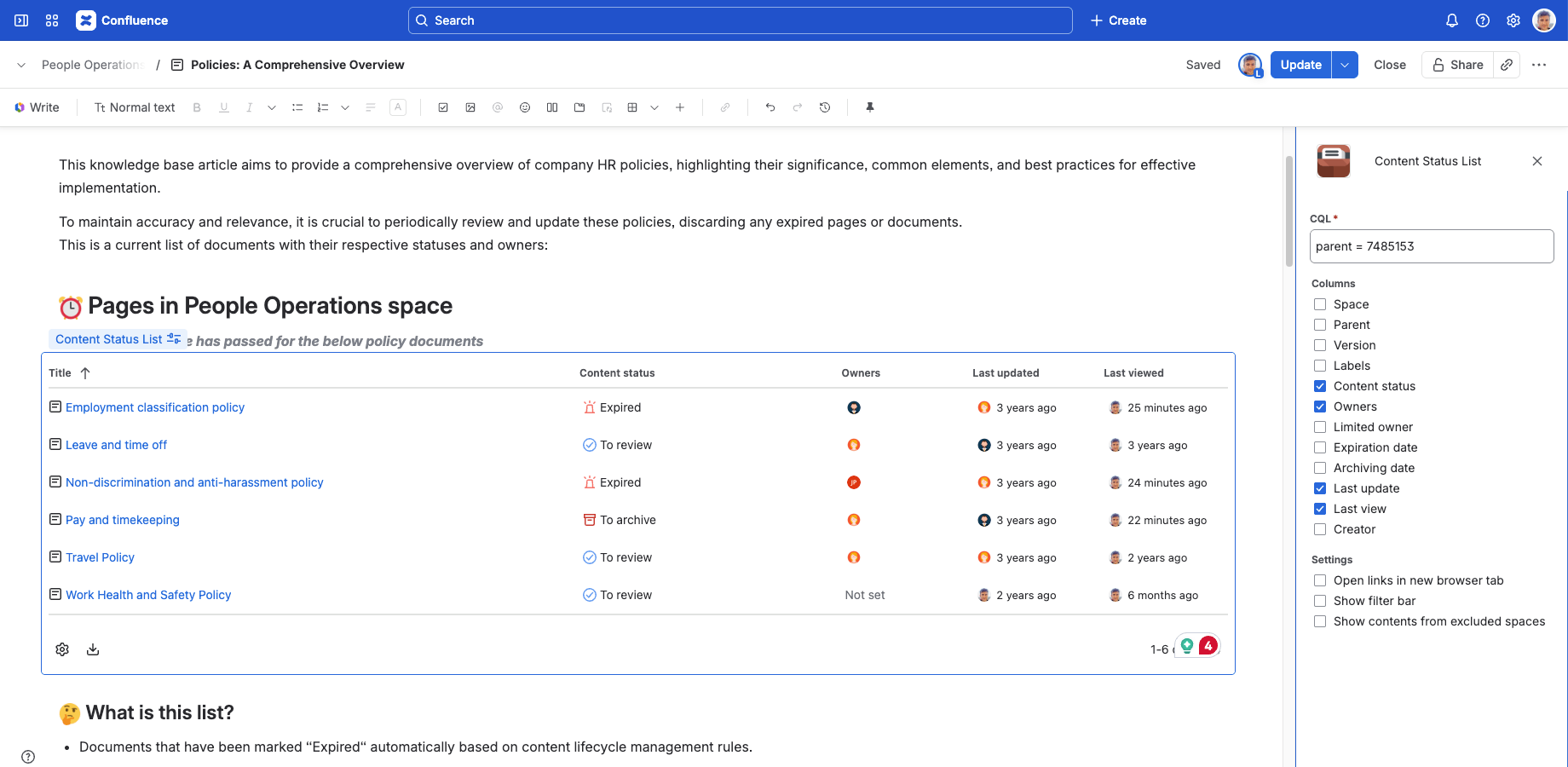
This macro renders a list of the contents that match the passed CQL query parameter. Use it to generate content lists with fields specific to the Better Content Archiving app, such as content status, owners, expiration date, and more.

The use cases for this macro are endless due to the flexibility of CQL. See the content list documentation for general usage.
Tip: you can build content status dashboard pages by adding multiple instances of this macro with different CQLs.
Configuration
When adding a macro to a page or blog, do the following:
- Start editing a Confluence page.
- Click "Insert" in the toolbar, then "View more", enter "Content Status List" to the search box and insert the macro. (Or just type "/Content Status List" and select the macro.)
- Click "Edit" on the macro toolbar.
- Configure the macro options under CQL, Columns, and Settings as needed (see below).
- Save the changes.
CQL
Here, enter the CQL query that determines which contents appear in the list. Only contents the current viewer is allowed to see are ever returned.
For help writing the query:
- See the CQL query samples for inspiration.
- See the CQL fields reference.
Columns
Here, configure which columns appear in the macro's content list. It works the same way as setting visible columns for content lists in general.
Settings
These additional options drive the subtle behavior of the macro's content list. You have the following options:
- Open links in new browser tab: when checked, space and content links open in a new tab. When unchecked (default), they open in the same tab.
- Show filter bar: when checked, the macro's content list can be filtered as other content lists. When unchecked (default), the filter bar is hidden.
- Show excluded contents: when checked, the macro also shows contents in excluded spaces. When unchecked (default), only contents from non-excluded spaces are shown.
Example
For example, to display the list of expired pages:
- Start editing a Confluence page.
- Click "Insert" in the toolbar, then "View more", enter "Content Status List" to the search box and insert the macro. (Or just type "/Content Status List" and select the macro.)
- Click "Edit" on the macro toolbar.
-
Enter the CQL:
type = page and arch.status = "Expired"
- Save the changes.
Questions?
Ask us any time.